
Creating Schedules
Create a schedule step by step: where, what, hours and repeats, with live conflict checking.
Click Create schedule (or press N) on the Schedules page. You can also click an empty slot on the timeline to start with that screen and time filled in.
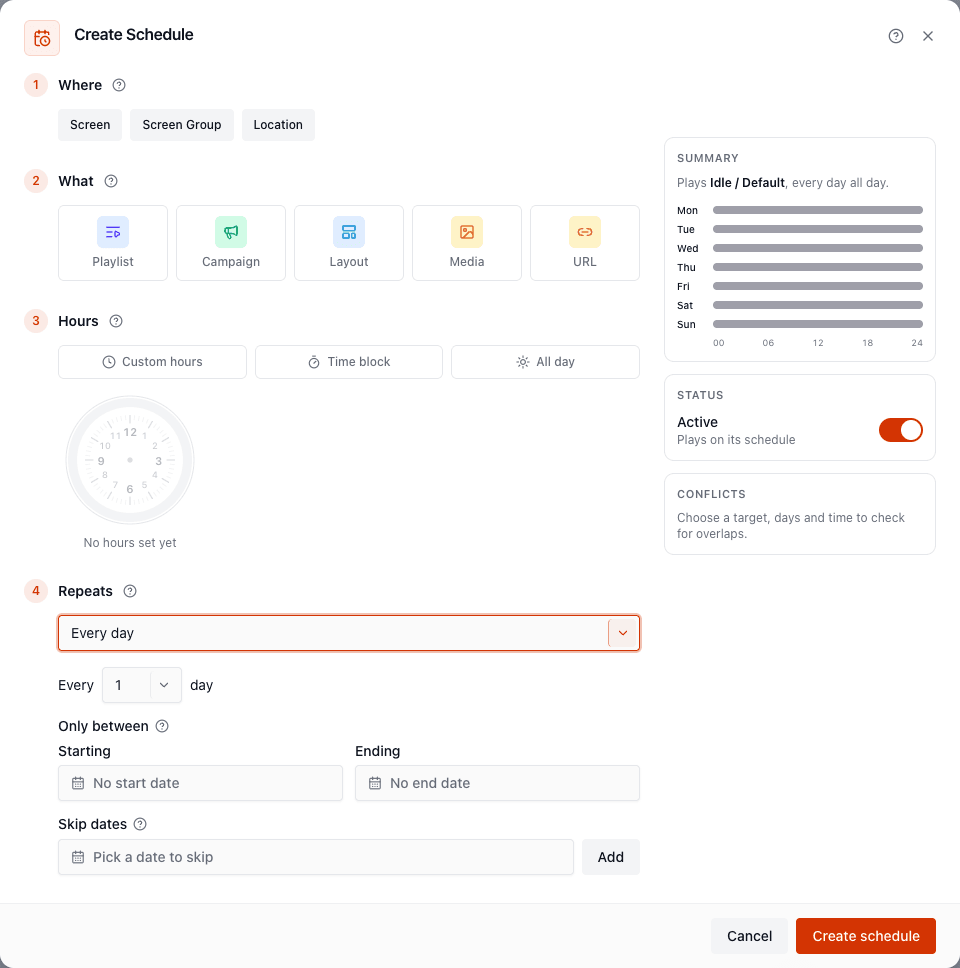
The form has four steps on the left. On the right a Summary, the schedule’s Status and live Conflicts update as you go.
1. Where
Section titled “1. Where”Choose what the schedule targets:
- Screen: one display.
- Screen Group: every screen in the group, all playing at once. See Screen Groups.
- Location: every screen currently at that place. Needs
locations:read. See Locations.
Then pick the screen, group or location from the list.
2. What
Section titled “2. What”Choose the content type, then the item:
| Type | Plays |
|---|---|
| Playlist | A playlist, looped. |
| Campaign | An ad campaign, which rotates its layouts. |
| Layout | A published layout. |
| Media | A single image, video or document. You can set a Duration (seconds). |
| URL | A web page (https://…), with a Duration (seconds). |
3. Hours
Section titled “3. Hours”What time of day it plays:
- Custom hours: set a Starts and Ends time on the dial. An end time earlier than the start runs overnight into the next day (for example 22:00 to 02:00).
- Time block: use a saved window such as Breakfast. See Time Blocks. Edit the block later and every schedule that uses it follows.
- All day: plays around the clock.
Times are on each screen’s own clock.
4. Repeats
Section titled “4. Repeats”Which days it runs. Choose a pattern:
| Choice | Meaning |
|---|---|
| Every day | Every day, or every N days. |
| On certain days | Pick weekdays (or Weekdays / Weekends / Every day presets), every week or every N weeks. |
| Monthly | On a day of the month, every month or every N months. Months without that day are skipped. |
| Yearly | Every year on a month and day. |
| Once (one date) | One date only. |
With a time block that has days, a daily or weekly schedule runs on the block’s days. Edit the block to change them. For monthly, yearly and once, the block supplies only the hours; the date under Repeats sets the day.
Then optionally:
- Only between: a Starting and Ending date. Leave blank for no limit. (Not used for Once.)
- Skip dates: pick dates to skip even when they would normally run, such as public holidays. Click Add for each.
Priority
Section titled “Priority”Under Overlaps, switch on Win when schedules overlap to give the schedule a higher priority and choose a Priority level. Higher numbers win. Off means normal priority: when two schedules overlap, the newest wins ties. The Conflicts panel suggests a level when this schedule would lose. See Priority & Conflicts.
Status
Section titled “Status”The Active switch controls whether the schedule plays. Leave it on, or switch it off to build a schedule now and enable it later.
Check the summary and conflicts
Section titled “Check the summary and conflicts”- The Summary shows what plays, on which days, and a 24-hour bar for each day of the week.
- Conflicts appears once you’ve chosen a target, days and time. It lists overlapping active schedules and says which one plays: This schedule plays instead of it, or It plays instead of this schedule, with tie-break reasons when priorities match.
Click Create schedule to save. It appears in the views straight away.
Editing and copying
Section titled “Editing and copying”Open any schedule to edit it with the same form. Changes apply to the next check-in. To turn one off without losing it, switch Active off.