
Remote Commands
Capture screenshots, refresh content, ping, reboot and update players from Stratos.
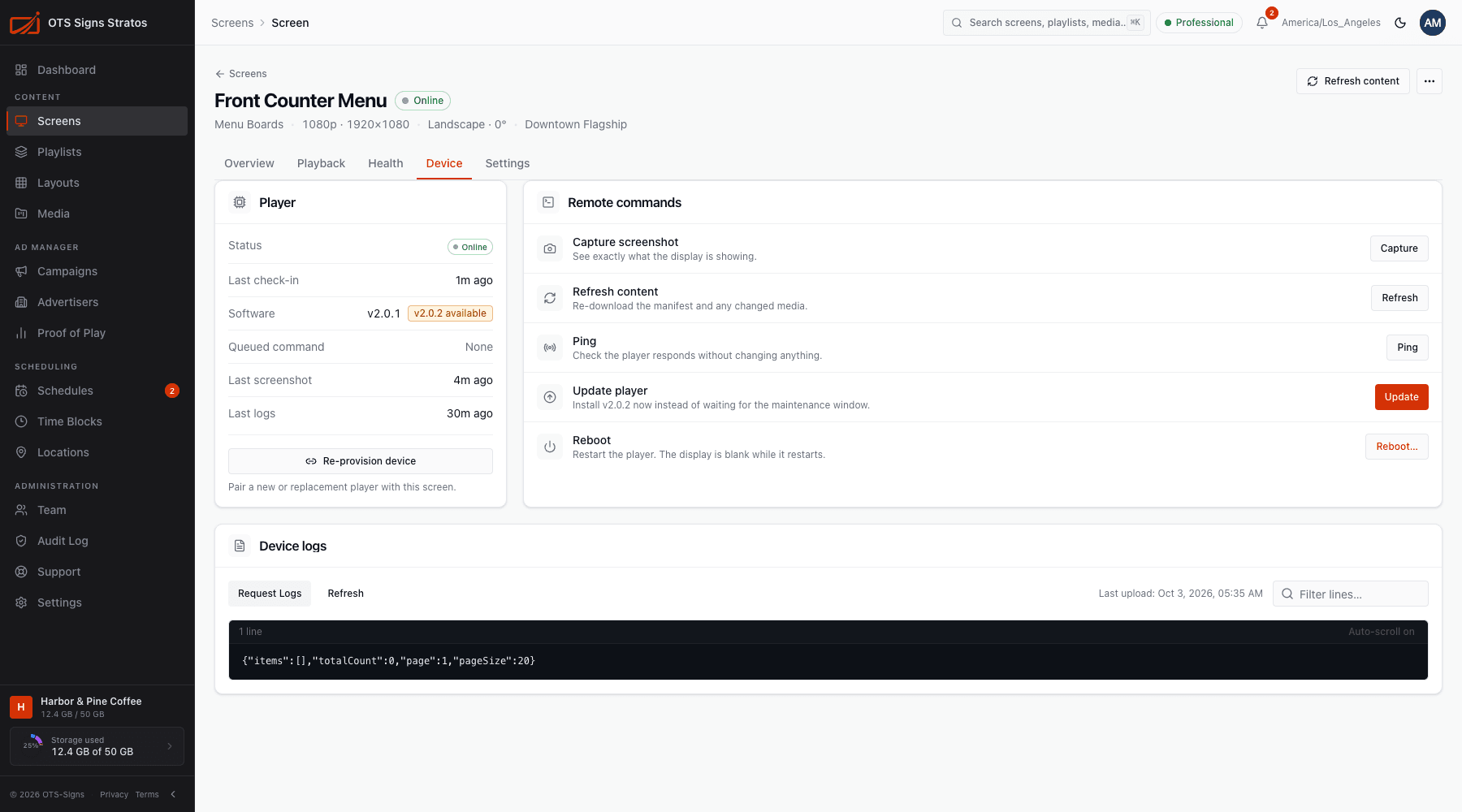
You can control a paired player from Stratos without visiting it. Commands are on each screen’s Device tab, in the page header, and in the Screens list.
You need screens:write to send commands.
The commands
Section titled “The commands”| Command | What it does | Notes |
|---|---|---|
| Capture screenshot | Takes a picture of exactly what the display is showing. | It appears in the screen’s Live view within a few seconds. A toast confirms Screenshot requested. |
| Refresh content | Re-downloads the schedule and any changed media. | Use after publishing if you don’t want to wait for the next check-in. |
| Ping | Checks the player responds, without changing anything. | A quick connectivity test. |
| Update player | Installs the latest player release. | Appears when a newer version is available. See Player Updates. |
| Reboot | Restarts the player. | The display goes blank while it restarts. Asks you to confirm. |
You can also use Ping, Refresh Content and Reboot from a screen’s row menu in the Screens list. Update all now is in Settings → Players.
Commands are queued
Section titled “Commands are queued”Commands go to the player the next time it’s reachable. If the player is online and connected, that’s almost immediate. If it’s offline or checking in slowly, the command waits. A banner on the screen page shows a command is queued, and you can Cancel it before it runs.
The Health tab’s Device commands list shows every command sent, with its result.
The Device tab
Section titled “The Device tab”Player shows status, last check-in, software version, any queued command, and when the last screenshot and logs arrived.
Device logs
Section titled “Device logs”The Device logs card shows the player’s recent log lines so you can see errors without visiting it. Use Filter lines… to search. If you see No logs available, the player hasn’t uploaded any yet.
Safety
Section titled “Safety”- Reboots and updates interrupt playback. Do them out of trading hours where you can.
- Commands are recorded in the Audit Log with who sent them.
- You can only send commands to screens you have access to. See Folder Access.