
Inviting Users
Invite people by email, track pending invitations, and resend or cancel them.
People join your workspace by invitation. They receive an email with a link, set up their sign-in, and land in Stratos with the role you chose.
Where to find it: Team → Members (Invite members) and Team → Invitations. You need users:write to invite and users:read to view invitations.
Invite members
Section titled “Invite members”- Click Invite members on the Members tab (or press ⌘ K and choose Invite Members).
- Type or paste one or more Email addresses. Separate several with commas, spaces or new lines.
- Choose a Role. You can only offer roles whose permissions you hold yourself.
- Optionally add a Personal note, included in the invitation email. For example, Welcome aboard! You’ll be helping with the lobby screens.
- Click Send invitation.
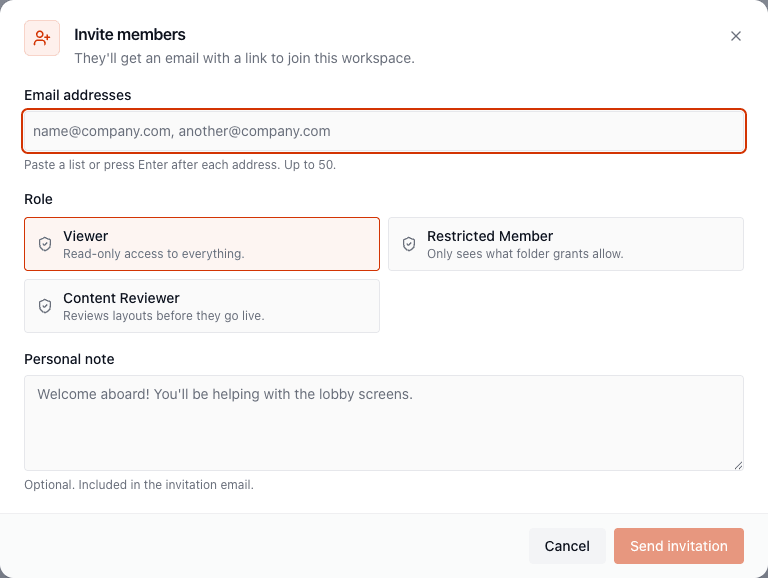
If some addresses can’t be sent (typos, or people who already belong), the dialog stays open with those addresses so you can fix them. The ones that were sent are not repeated.
The Invitations tab
Section titled “The Invitations tab”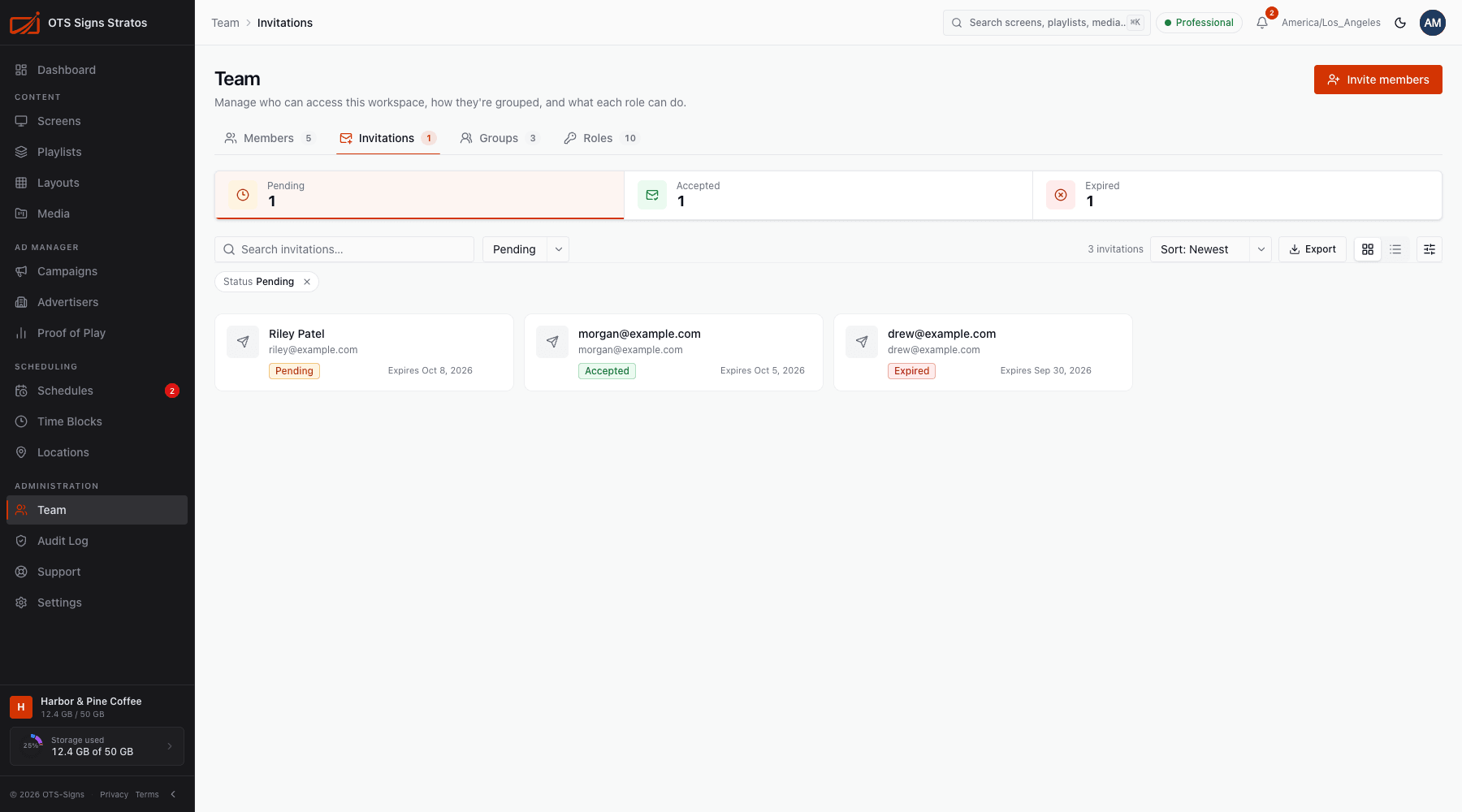
Each invitation shows the person’s Email, Role, Status, when it was Sent and when it Expires. Summary tiles count Pending, Accepted and Expired.
| Status | Meaning |
|---|---|
| Pending | Sent and waiting. |
| Accepted | The person has joined. They now appear under Members. |
| Expired | The link ran out before it was used. |
| Cancelled | You withdrew it. |
Click an invitation to see its details, including the Message you included.
Resend, invite again, cancel
Section titled “Resend, invite again, cancel”- Resend sends a pending invitation again (Invitation resent).
- Invite again sends a fresh invitation for an expired or cancelled one.
- Cancel withdraws a pending invitation. The link in the original email stops working. Select several to cancel in bulk.
What the invited person does
Section titled “What the invited person does”- Open the email and click the link.
- Choose how to sign in and set a password.
- Land on the Stratos dashboard (admins also see a short welcome page).
If they can’t find the email, ask them to check spam, then Resend.