
Connections
Connect external services such as Canva to your workspace, and request custom integrations.
Settings → Connections links your workspace to outside services so content and data can flow in without manual uploads. You need integrations:read to view and integrations:write to connect and disconnect.
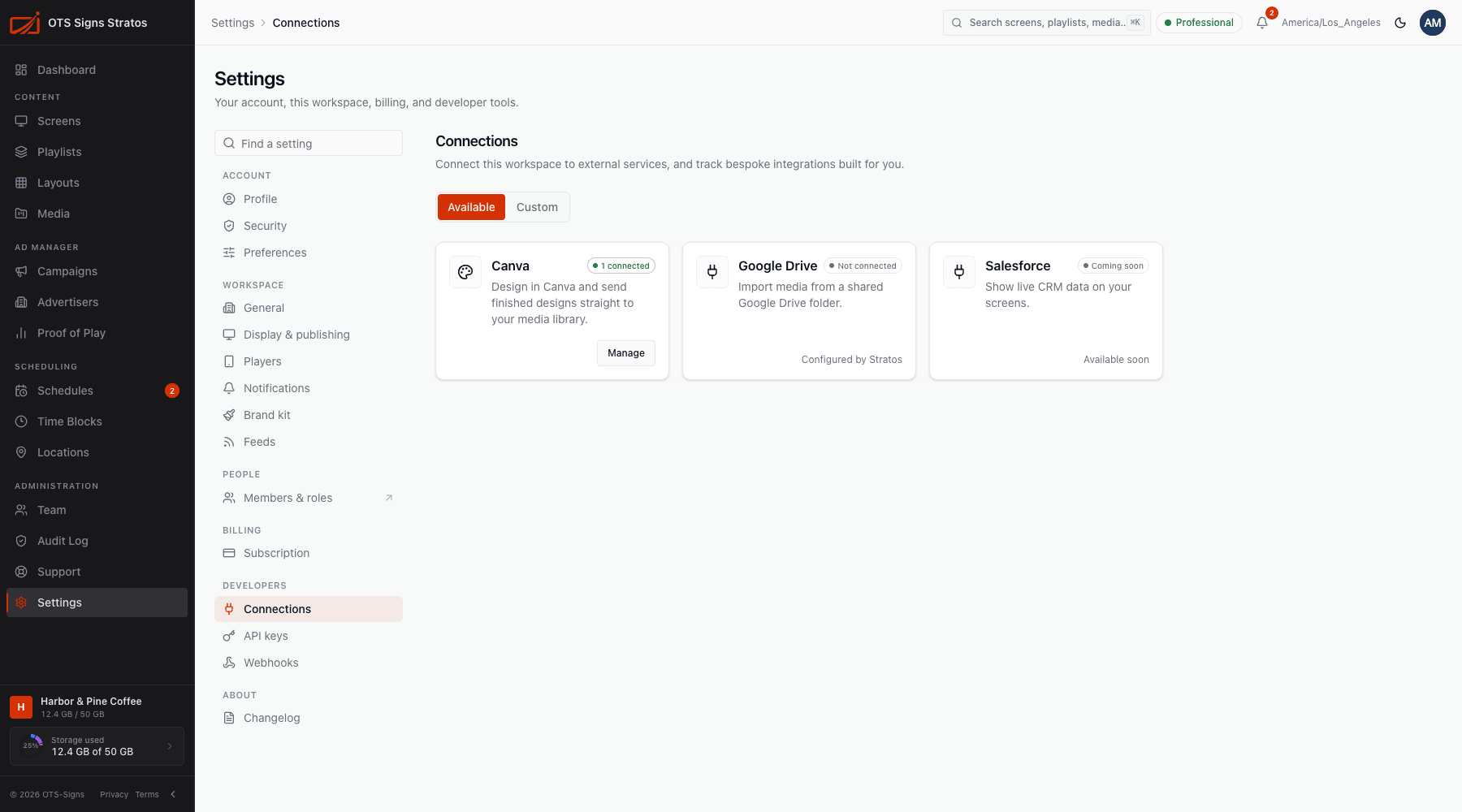
Available integrations
Section titled “Available integrations”The page has two tabs: Available and Custom. On Available, each integration appears as a card with what it does and its state:
| State | Meaning |
|---|---|
| Connect | Available to you. Click to link an account. |
| Manage | Already connected. Add or remove accounts. |
| Not connected | Available but not yet linked. |
| Expired: reconnect required | The sign-in with the external service expired. Reconnect to restore it. |
| Not in plan | Your plan doesn’t include it. Ask your Account Owner to upgrade. |
| Coming soon / Available soon | Not released yet. |
| Configured by Stratos | Set up for you. Nothing to do. |
If you can see an integration but can’t connect it, you’ll see Ask an admin to connect.
Connect an account
Section titled “Connect an account”- Click Connect on the integration.
- You’re taken to the service to sign in and approve access.
- You return to Stratos with a message: Integration connected.
An integration can have more than one connected account. Use Manage to see them, and remove one (Account removed). Disconnecting stops new content flowing in. Content you already imported stays.
Custom integrations
Section titled “Custom integrations”Need something bespoke, such as pulling data from Salesforce, SAP or Zendesk? Under Custom, Request a custom integration:
- Enter the Integration name and External system.
- Describe what data should flow, in which direction, and how often.
- Click Submit request.
Our team will scope it with you. Your requests are listed with their status. You can withdraw one (Cancel integration request?) before work starts.