
Screen Groups
Organise screens into groups so one schedule can target many screens at once.
A screen group is a named collection of screens. Point a schedule at the group and every screen in it plays that content. Add a screen to the group later and it picks up the group’s schedules automatically.
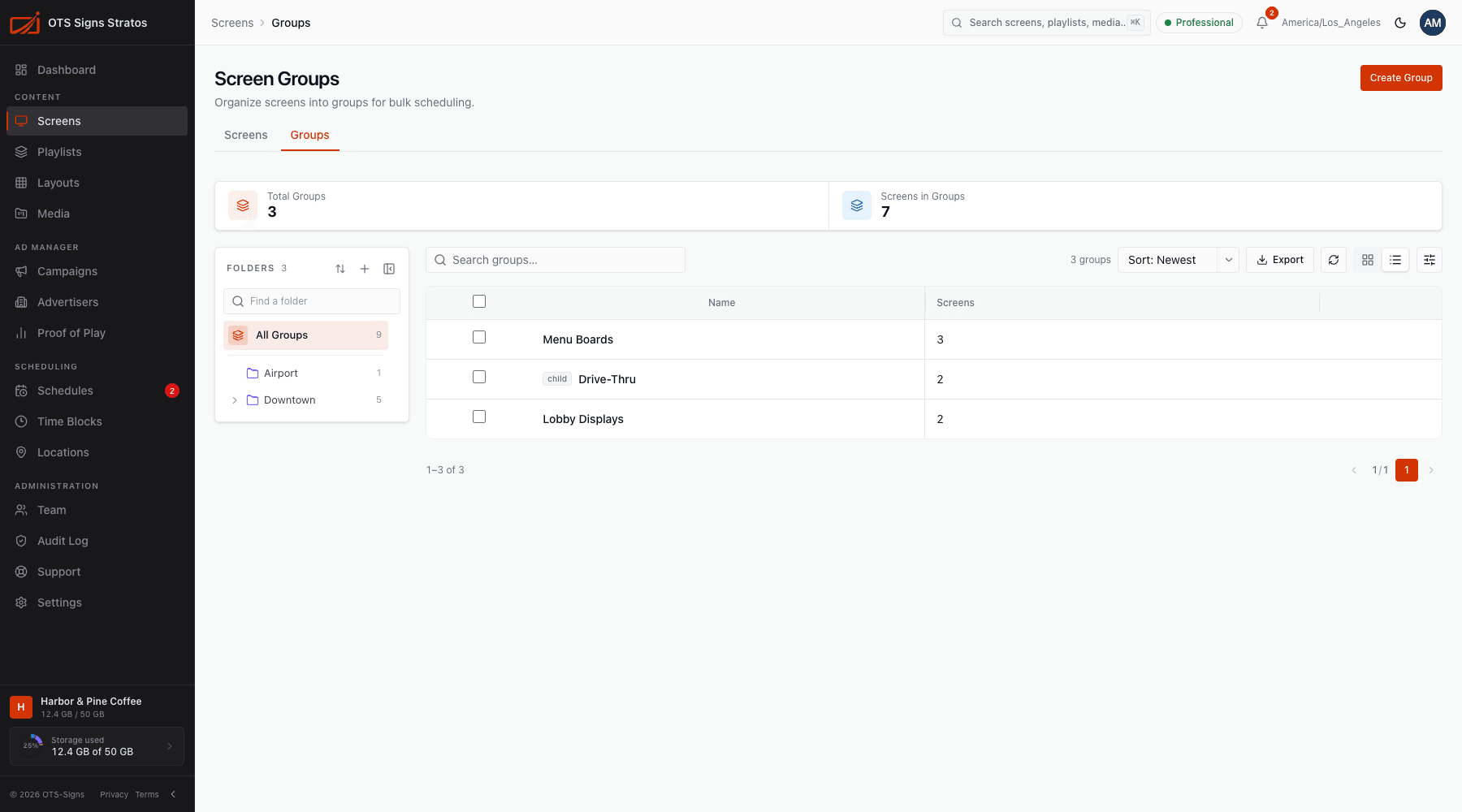
Where to find it: Screens in the sidebar, then the Groups tab. You need screen_groups:read to see it, and screen_groups:write to change groups.
Why use groups
Section titled “Why use groups”- Schedule once, update everywhere. Change a group’s schedule and every member follows.
- Match how you run your estate, for example “Menu Boards”, “Lobby Displays” or “Drive-Thru”.
- Fewer schedules to manage. One schedule row covers many screens.
A screen can belong to one group at a time.
Create a group
Section titled “Create a group”- Click Create Group (or Create Screen Group from an empty list).
- Enter a Name, such as London storefronts.
- Optionally choose a Parent group, or leave it as None (root level).
- Save.
Nested groups
Section titled “Nested groups”Groups can sit inside other groups, for example Drive-Thru inside Menu Boards. Nesting is for organisation only: a schedule on a parent group applies to the screens that are directly in that group, not to screens in its child groups. To cover several groups, add a schedule for each or target a location instead.
When you move a group, Stratos prevents loops: a group can’t be placed inside itself or one of its own descendants.
The group page
Section titled “The group page”Click a group to open it. It has two cards:
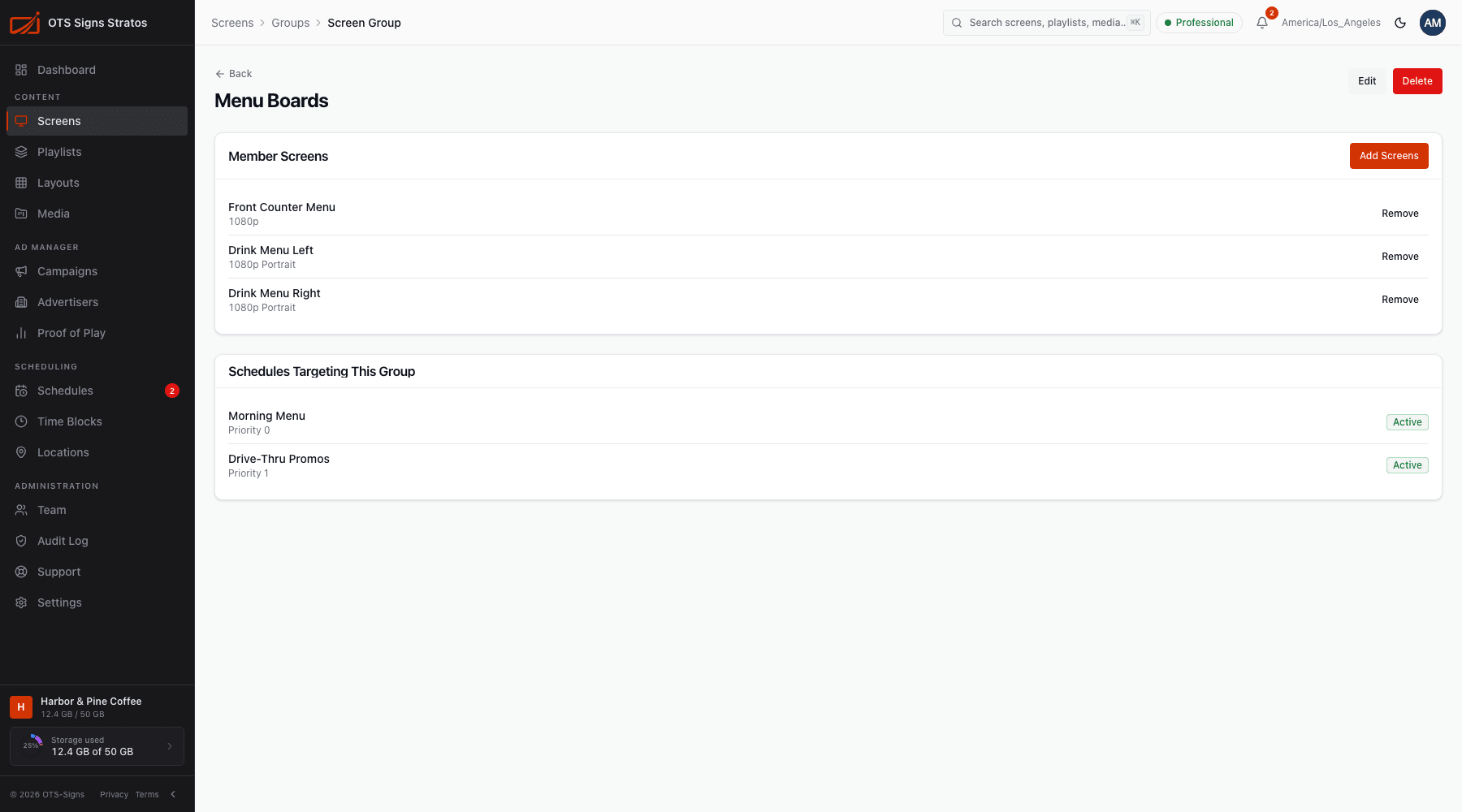
- Member Screens: the screens in the group, with each one’s resolution. Add Screens opens a picker of screens that don’t belong to a group yet (with search). Remove takes a screen out, after which schedules that target the group stop applying to it.
- Schedules Targeting This Group: every schedule aimed at the group, with its priority and Active/Inactive state. Click one to open it.
Use Edit to rename the group or change its parent, and Delete to remove the group.
Working from the list
Section titled “Working from the list”The Groups list works like the Screens list: search, sort, folders, saved views and Export. Row actions are View Details, Edit, Move to Folder, Copy ID and Delete. Select several rows for bulk Move or Delete. The summary tiles show Total Groups and Screens in Groups.
Groups, locations or both?
Section titled “Groups, locations or both?”| Use | When |
|---|---|
| Screen group | Screens that should play the same thing regardless of where they are. |
| Location | Screens at the same physical place, which also share a time zone and weather. |
| A single screen | One-off content. |