
The Timeline
Arrange, resize and time playlist items with the timeline, sequence list and keyboard shortcuts.
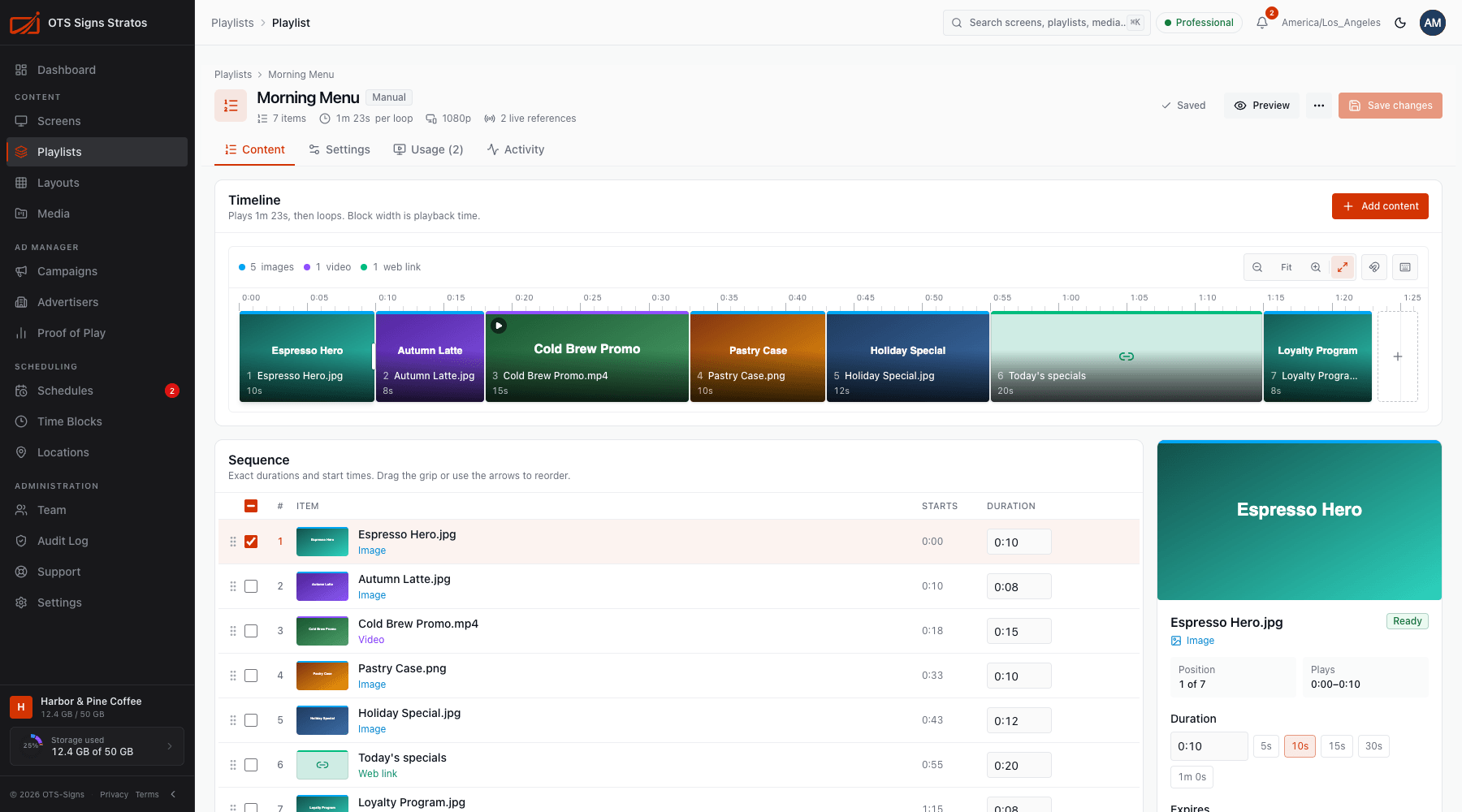
On the Content tab of a manual playlist, the Timeline and Sequence are two views of the same list. Edit in either. Changes show up in both, and wait in your draft until you Save changes.
Reading the timeline
Section titled “Reading the timeline”Each item is a block. Block width is playing time, so a 20-second item is twice as wide as a 10-second one. The ruler shows the loop from 0:00, and the header says Plays 1m 23s, then loops.
Blocks are colour-coded by type: images, video and web links. A summary above the ruler counts each type. The + block at the end adds more content.
Toolbar controls on the right let you zoom out, zoom in, Fit the whole playlist to the width, toggle snapping, and show a keyboard-shortcut list.
Reordering
Section titled “Reordering”- Drag a block left or right on the timeline.
- In the Sequence list, drag the grip at the start of a row, or use the arrows.
- With the keyboard, focus a block and press ⌥ + ← / → to move it earlier or later.
The Starts column in the Sequence shows when each item begins within the loop.
Changing duration
Section titled “Changing duration”- Drag the right edge of a block. Resizing snaps to 5-second steps. Hold ⇧ to resize freely, or turn snapping off in the toolbar. A callout shows the live duration as you drag.
- Type a duration in the Sequence list or in Details, as
m:ss(for example0:20). - Use [ / ] to take off or add 1 second (⇧ for 5 seconds).
- Details offers quick-pick duration chips.
Selecting several items
Section titled “Selecting several items”Click a block, then ⇧-click or use the checkboxes in the Sequence to select more. A bar appears showing the number selected and their total time, with:
- a duration box that sets the same length on every selected item, and
- Remove.
The Details panel
Section titled “The Details panel”Select an item to edit it:
| Field | Meaning |
|---|---|
| Position / Plays | Where it sits in the loop and its start–end time. |
| Display name | A friendlier label used in Stratos (links especially). |
| Duration | How long it shows. |
| Expires | A date after which the item stops playing. Clear removes it. |
| Duplicate / Open file / Remove | Item actions. |
Keyboard shortcuts
Section titled “Keyboard shortcuts”| Keys | Action |
|---|---|
| ← → | Previous / next item |
| Home End | First / last item |
| ⌥ ← → | Move item earlier / later |
| [ ] | Duration −1s / +1s (⇧ for 5s) |
| ⌘ D | Duplicate |
| ⌘ A | Select all |
| Del | Remove selection |
| Esc | Clear selection |
| Enter | Preview |
| ⌘ + scroll | Zoom at the pointer |
| ⇧ + drag edge | Resize without snapping |
| ⌘ S | Save changes |
On Windows and Linux use Ctrl in place of ⌘.