
Display & Publishing
Set fallback content, when screens count as offline, the workspace time zone, layout approvals and campaign archiving.
Settings → Display & publishing holds workspace-wide defaults for what screens show, when they count as offline and how layouts get approved. You need workspace:read, and workspace:write to change them.
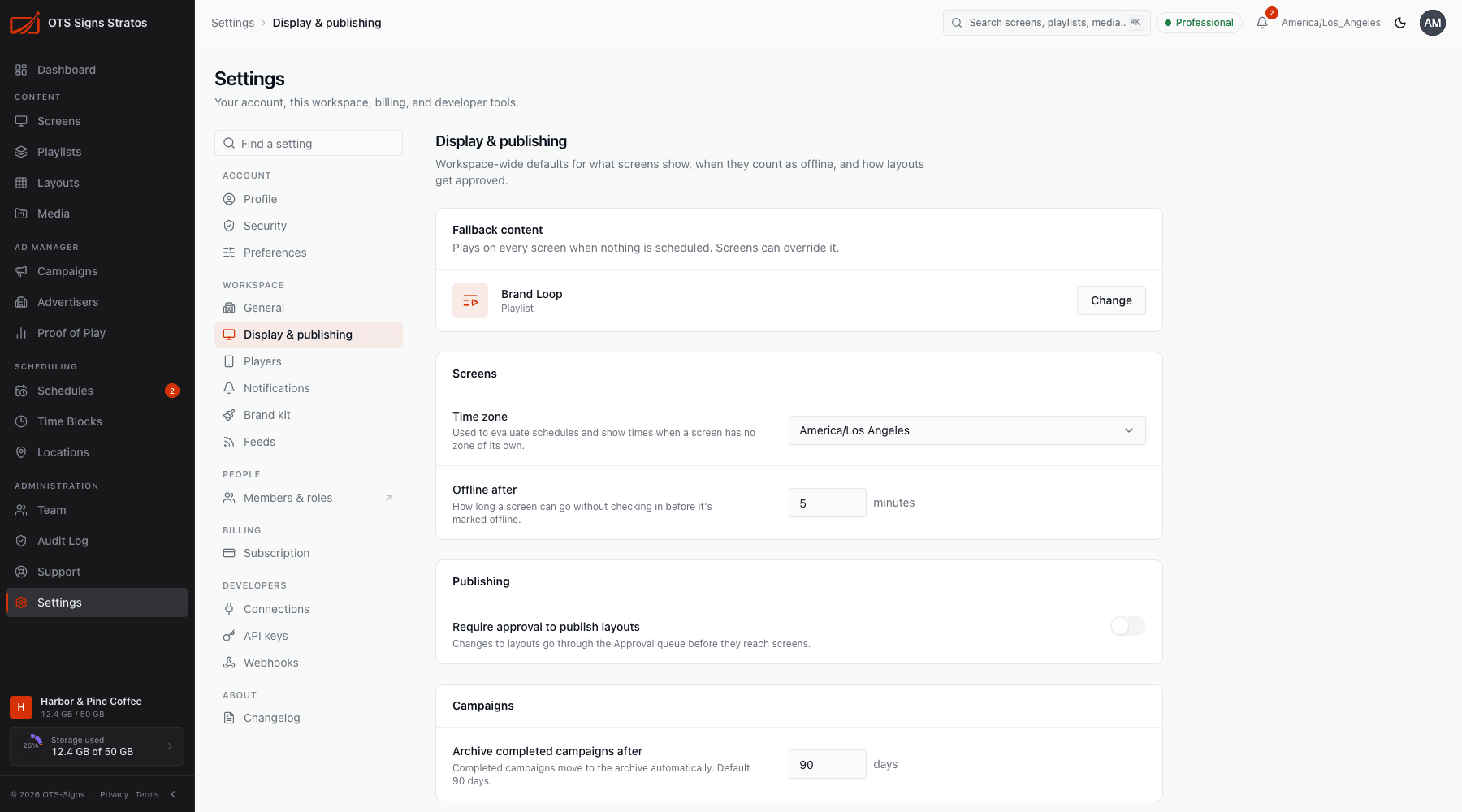
Fallback content
Section titled “Fallback content”Content that plays on every screen when nothing is scheduled. Click Choose content (or Change) and pick a playlist, layout or media file. Screens can override it in their own settings. If nothing is set, idle screens show a blank screen until something is scheduled.
This applies immediately, without needing Save.
Screens
Section titled “Screens”| Setting | Notes |
|---|---|
| Time zone | Used to evaluate schedules and show times when a screen has no zone of its own. Leave it as UTC (default) or pick yours. A screen’s own zone, or its location’s, takes priority. |
| Offline after | How long a screen can go without checking in before it’s marked offline. A whole number from 1 to 60 minutes (default 5). Screens that are late but not yet offline show as Stale. See Screen Health. |
Publishing
Section titled “Publishing”Require approval to publish layouts: changes to layouts go through the Approval queue before they reach screens. When on, choose how strictly:
- Required: layouts can’t be published until approved.
- Recommended: publishers are warned, but can publish without approval.
See Publishing Layouts.
Campaigns
Section titled “Campaigns”Archive completed campaigns after n days (1 to 3,650, default 90). Completed campaigns move to the archive automatically. See Campaigns.
Saving
Section titled “Saving”Changes to the time zone, threshold, approvals and archive period are applied with Save (a Display settings saved message confirms). Cancel discards edits. Invalid values are flagged on the field.