
Locations
Model the places your screens live in, with address, time zone and weather, and schedule by location.
A location is a named physical place, such as Downtown Flagship or Airport Terminal B, that one or more screens belong to. Locations give screens a shared address, time zone and weather source, and let you target schedules, overrides and ad allocations at a place instead of at individual screens.
Where to find it: Locations in the sidebar. You need locations:read, and locations:write / locations:delete to change them.
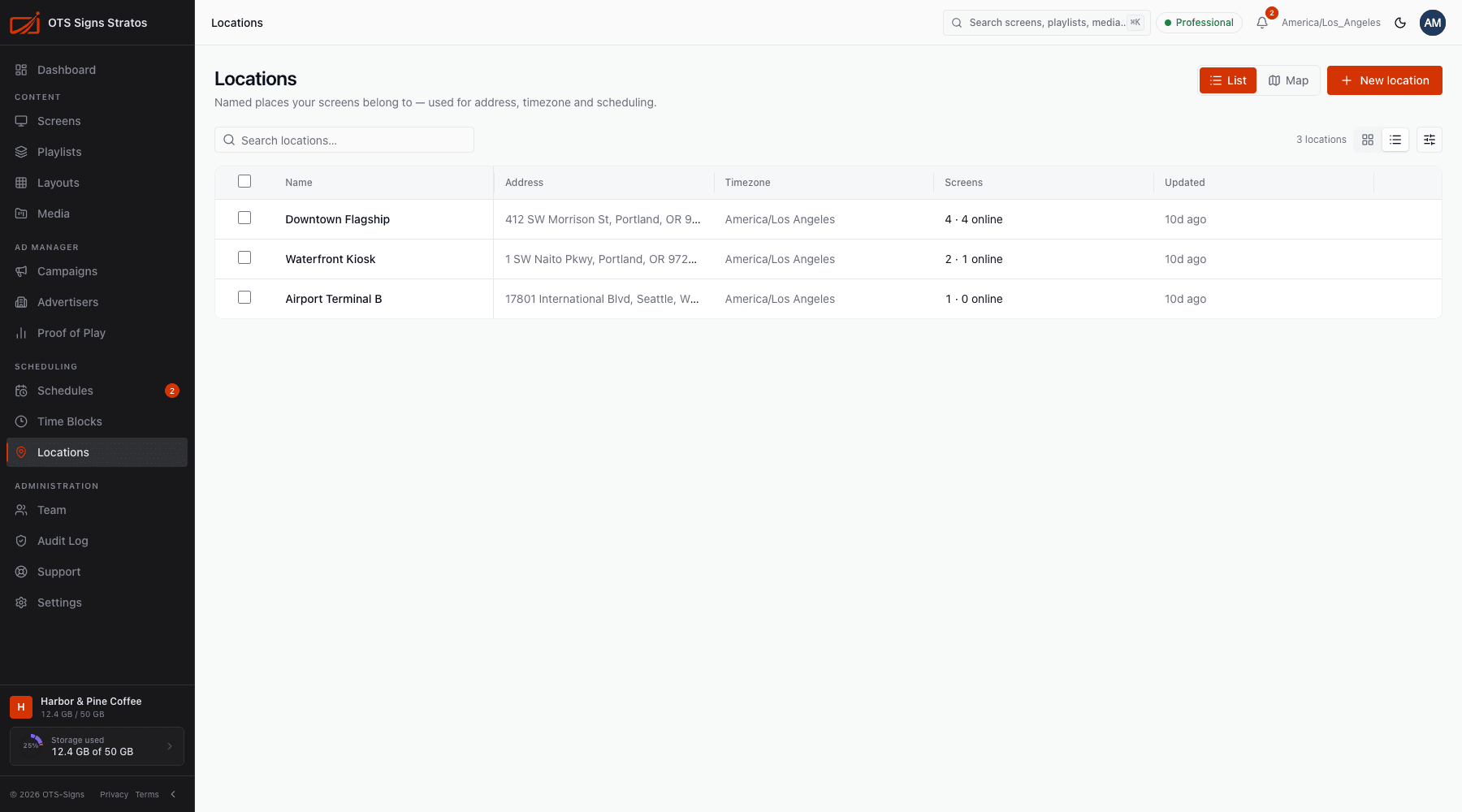
The Locations page
Section titled “The Locations page”Switch between List and Map with the toggle. The list shows each location’s Name, Address, Timezone, Screens (and how many are online) and when it was Updated. Search by name or address, sort, and Export.
Create a location
Section titled “Create a location”Click New location.
- Name: required and unique in your workspace (for example Store #1234).
- Search for an address (street, city or place name) and pick a result. Stratos fills in the address, coordinates and time zone for you.
- Or fill in Address line 1 / 2, City, Region / state, Postal code and Country code yourself, and optionally Latitude and Longitude (latitude -90 to 90, longitude -180 to 180).
- Confirm the Timezone. Screens here use it for schedules unless they set their own.
- Add an optional Description and save.
A badge shows how the position was set: Address search (found by search) or manual.
The location page
Section titled “The location page”Click a location to see it in detail:
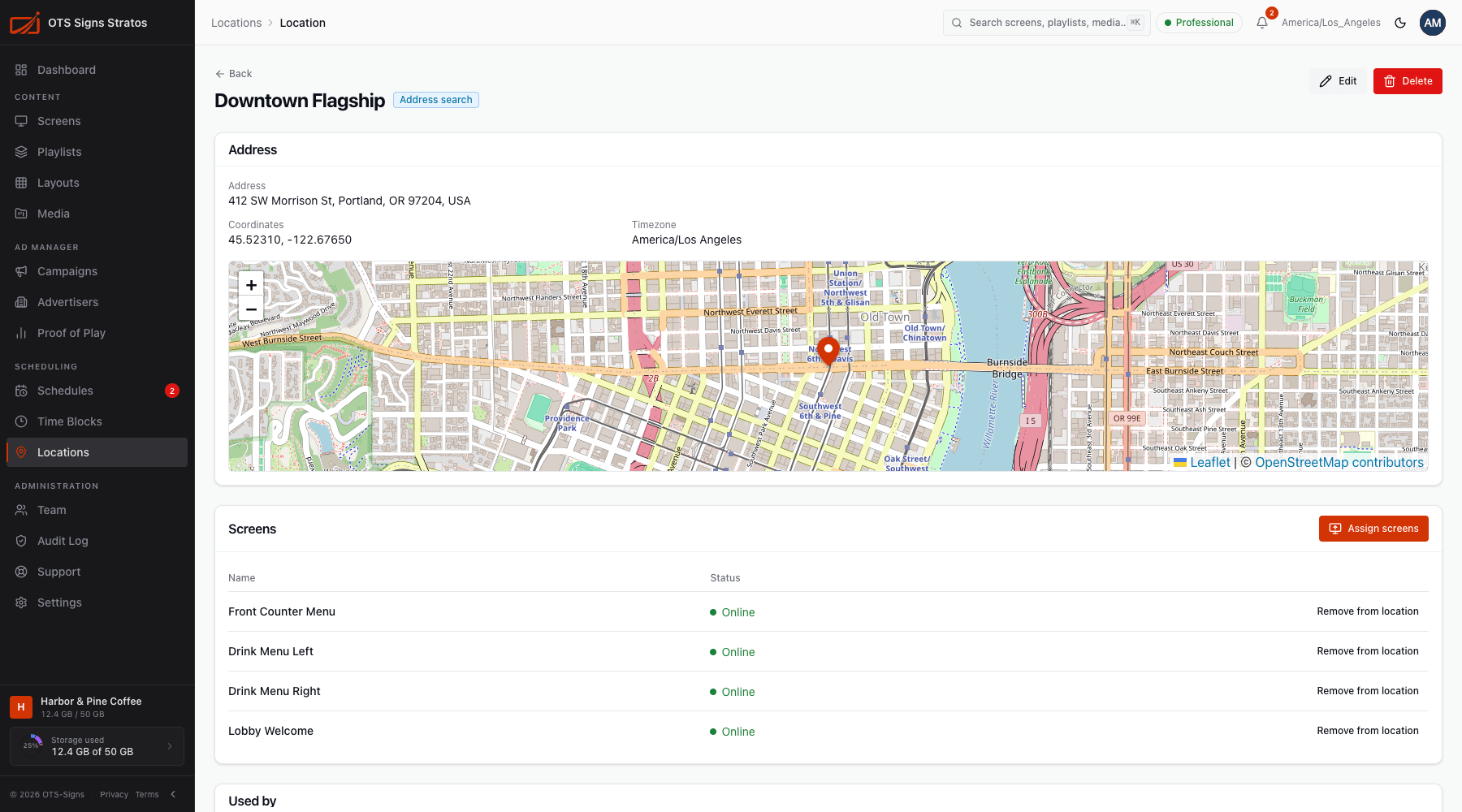
- Address, Coordinates, Timezone and a map.
- Screens: the screens at this place with their status. Assign screens adds more (a screen can only be at one location, so adding it moves it). Remove from location takes one out.
- Used by: the schedules and campaign allocations that target the location.
Use Edit to change details and Delete to remove it.
Putting a screen in a location
Section titled “Putting a screen in a location”Set it on the screen’s Settings tab (Location), when adding a screen, or from Assign screens on the location page. The Screens list can filter by location, including No location.
What a location changes
Section titled “What a location changes”| Feature | Effect |
|---|---|
| Time zone | A screen with no zone of its own uses its location’s. See Screen Settings. |
| Schedules | Target a Location to play on every screen there. See Creating Schedules. |
| Overrides | Target a location to override all of its screens at once. See Overrides. |
| Weather widget | This screen’s location feeds the weather. See Widgets. |
| Ad Manager | Campaign allocations and Proof of Play reports can break down by location. See Campaigns. |