
Folder Access
Grant or deny people and groups access to specific folders with folder roles.
Folder access lets you give a person or group a role inside one folder (and its subfolders) without giving it workspace-wide. Use it for agencies, franchisees, regional teams and anyone who should only see their own content.
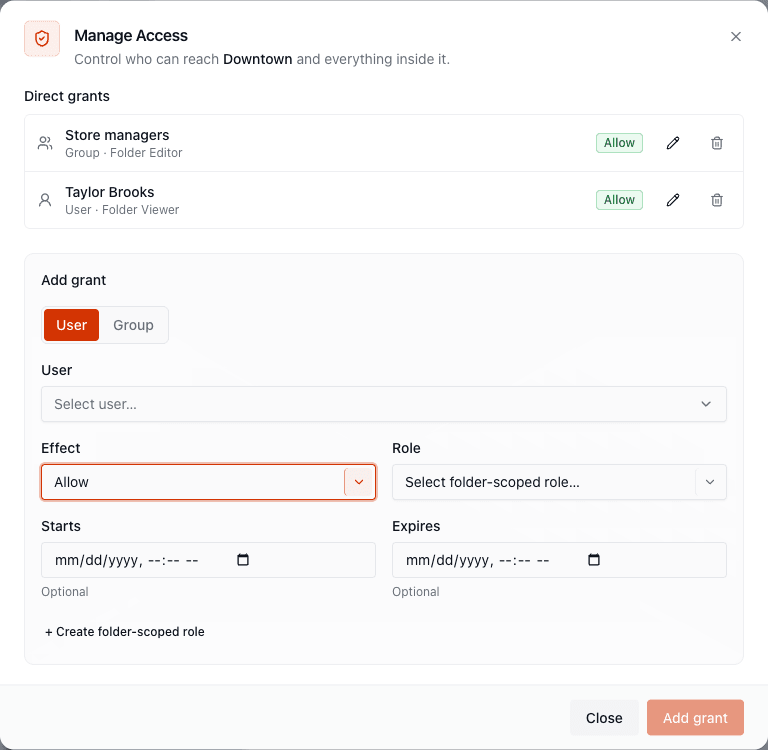
Where to find it: right-click a folder in the Media Library and choose Manage Access. You need folders:manage_access (included in Admin, Account Owner and the Folder Manager folder role).
How access is decided
Section titled “How access is decided”For content kept in folders (media, playlists, layouts, schedules, screens and screen groups):
- If the person’s roles include
access_allfor that kind of content (Viewer, Editor, Manager, Admin and Account Owner do), they can reach it in every folder. Grants don’t matter. - Otherwise Stratos looks at their folder grants, including grants on the folder’s parents. A grant on a parent covers all its subfolders.
- A Deny grant beats an Allow, in that folder and below.
- An Allow only helps if its folder role includes the permission being used (for example edit playlists).
- Items that aren’t in any folder need the person’s workspace-level permission. A folder grant can’t open them.
That’s why the Restricted Member role exists: it has almost no workspace-level access, so everything they can reach comes from grants.
Add a grant
Section titled “Add a grant”In Manage Access:
- Choose the Subject type: User or Group, then pick the person or group.
- Choose the Effect: Allow or Deny.
- Choose a Role: a folder role such as Folder Viewer, Folder Editor or Folder Manager, or a custom folder role. See Roles & Permissions. You can also create a folder-scoped role right here.
- Optionally set Starts and Expires dates for temporary access.
- Save. A confirmation says Access grant added.
Existing grants appear under Direct grants. Grants inherited from a parent folder appear under Inherited, with the folder they come from. Edit or Remove grant on direct ones. To change an inherited grant, go to the parent folder.
Examples
Section titled “Examples”| Goal | Setup |
|---|---|
| An agency edits promotions only | Make them Restricted Members. Grant their group Folder Editor on the Promotions folder. |
| A franchisee runs their own store | Grant their group Folder Manager on the Store 12 folder. |
| A contractor for a month | Grant Folder Viewer with an Expires date. |
| Everyone except one folder | Grant Deny to the group on that folder. (This only works for people whose role doesn’t include access_all.) |
Check someone’s access
Section titled “Check someone’s access”Open the member on Team → Members, go to Access and choose a folder under Check a folder. You’ll see what they can do there and where it comes from. See Members.