
Saved Views & Table Controls
Choose columns and density, and save filters and sort as named views you can switch between.
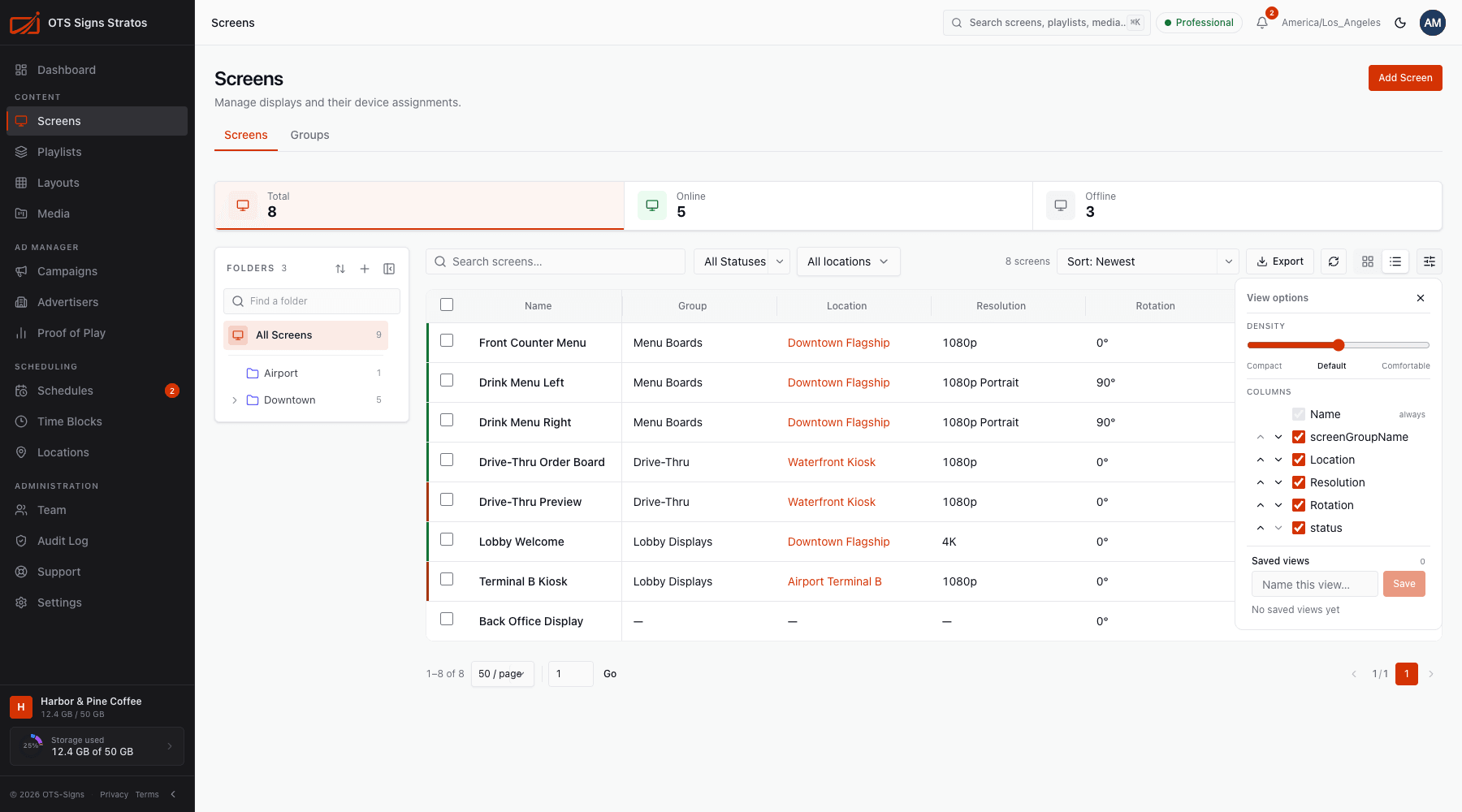
List pages remember how you like to see things. View options controls the layout of a list, and Saved views lets you keep several setups and switch between them in one click.
View options
Section titled “View options”Click the View options button (sliders icon) at the right of the toolbar on a list page.
Density
Section titled “Density”Slide between Compact, Default and Comfortable to fit more or fewer rows on screen.
Columns
Section titled “Columns”Tick or untick columns to show or hide them, and use the arrows to reorder. Some columns, like Name, are always visible. You can also drag a column edge to resize it. Your choices are remembered.
Saved views
Section titled “Saved views”A saved view captures the current search, filters, sort, columns, density and page size.
- Set the page up how you like it.
- Under Saved views, type a name in Name this view… and click Save.
- Later, open Saved views and pick it to restore everything.
Views are yours to edit and delete, but visible to everyone in the workspace, so a team can share useful ones (for example Offline screens in Airport). You can mark one as your default, which loads automatically when you open the page.
Grid and list
Section titled “Grid and list”Many pages offer Grid view and List view buttons. Grid shows cards with previews. List shows a table you can sort and configure.
Sorting and filtering
Section titled “Sorting and filtering”- Click a column heading to sort. Click again to reverse.
- Use the Sort menu where there’s no heading.
- Filters appear as chips you can remove one by one, or clear all.
- Filters and view are saved in the page address, so you can bookmark or share a link to exactly what you’re looking at.
Folders panel
Section titled “Folders panel”Pages with folders let you resize or collapse the folder panel. Stratos remembers the width. See Folders.
Which pages
Section titled “Which pages”Saved views and column controls are on Screens, Screen groups, Playlists, Layouts, Media and other browse pages.