
Security
Change your password, set up two-factor authentication, update your email and manage sessions.
Settings → Security shows how you sign in and where you’re signed in right now.
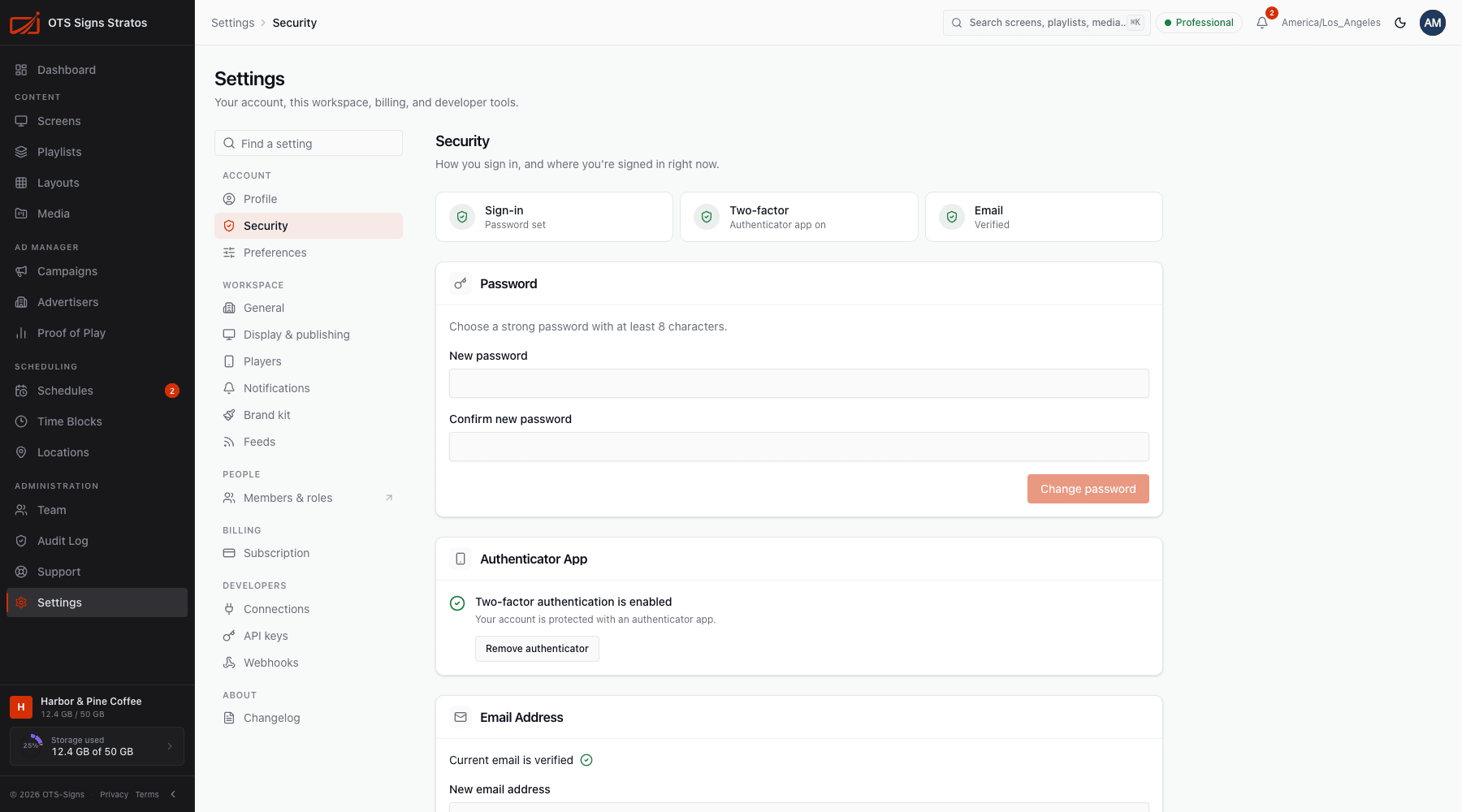
The summary at the top shows your Sign-in, Email (verified or not) and Two-factor status.
Password
Section titled “Password”Enter a New password (at least 8 characters) and Confirm new password, then click Change password. A confirmation says Password changed. If Stratos asks you to sign in again first, that’s a safety check to make sure it’s really you, and you’ll come back to the same page.
Two-factor authentication
Section titled “Two-factor authentication”Two-factor adds a second step at sign-in: a code from an authenticator app on your phone.
Turn it on
Section titled “Turn it on”- Under Authenticator App, click Set up authenticator.
- Scan the QR code with an authenticator app such as Google Authenticator, Microsoft Authenticator, 1Password or Authy.
- Enter the 6-digit Verification code the app shows.
- You’ll see Authenticator app enabled.
Remove it
Section titled “Remove it”Click Remove authenticator and confirm. Your account will be less secure. Anyone who manages your workspace can see whether you have two-factor on, on your member page.
Email address
Section titled “Email address”Change your sign-in email under Email Address:
- Enter the New email address.
- We send a verification code to it. Enter the code.
- The change applies when the code is verified. Until synchronization completes, keep using your previous sign-in name.
Codes can be resent if they don’t arrive.
Active sessions
Section titled “Active sessions”Active Sessions lists everywhere you’re signed in, with when each started and was last used. This session marks the one you’re on. Revoke signs another session out immediately (Session revoked). Use it if you’ve used a shared computer or lose a device.
Forgotten password?
Section titled “Forgotten password?”On the sign-in page choose the forgot-password option and follow the emailed steps. A workspace admin can also send you a temporary password. See Members.