
Smart Playlists
Let rules choose playlist content automatically from media type, folder and tags.
A smart playlist doesn’t hold a fixed list. It holds rules, and Stratos picks matching media from your library each time the playlist plays. Upload a new image with the right tag and it joins the rotation without anyone editing the playlist.
Choose Smart playlist when you create a playlist, or switch an existing one in Settings (this removes any manual items from the draft).
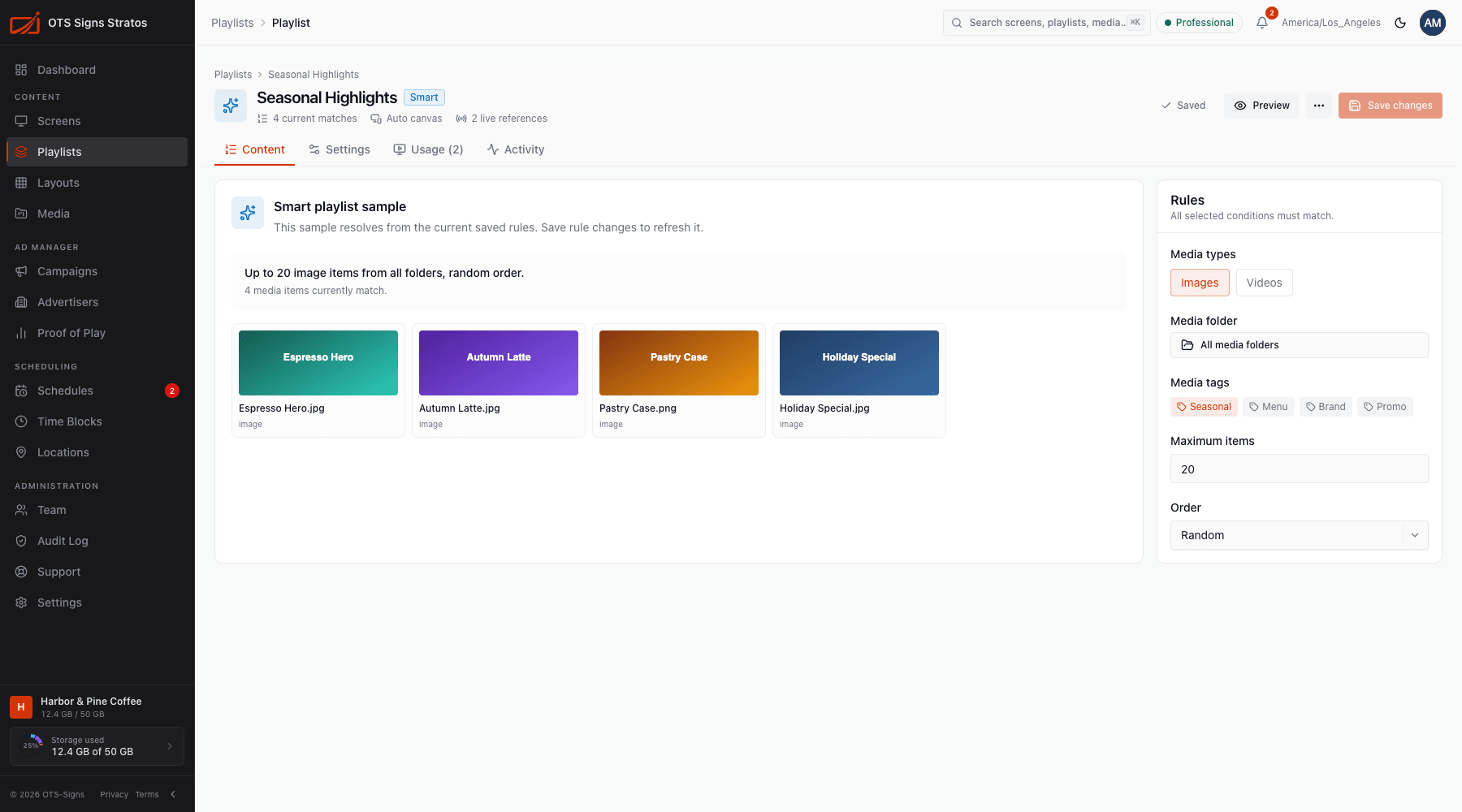
All the conditions you set must match.
| Rule | Meaning |
|---|---|
| Media types | Images, Videos, or both. |
| Media folder | Only media in that folder. Default All media folders. |
| Media tags | Only media with the selected tags. See Media Tags. |
| Maximum items | 1 to 500. If you leave it blank, up to 100 items are used. |
| Order | Sequential, Random or Alphabetical. |
A summary line restates the rules, for example Up to 20 image items from all folders, random order.
The sample
Section titled “The sample”The Content tab shows Smart playlist sample: the media that match the saved rules right now, and how many. Save your rule changes to refresh it. If nothing matches you’ll see No media currently match these rules.
The sample is a snapshot. At playback Stratos resolves the rules again, so new matching media appear automatically.
Durations
Section titled “Durations”Smart playlist items use each file’s normal duration: 10 seconds for images and the video’s own length for videos. You can’t set per-item timing or expiry, because there is no fixed item list. Media-level expiry still applies.
Good uses
Section titled “Good uses”- A Seasonal tag for promotional images you rotate in and out.
- A Menu folder that staff keep up to date.
- Random order for background loops.
If you need exact order or timing, use a manual playlist.