
Templates
Reuse a design: browse the template gallery, create layouts from templates and save your own.
A template is a layout saved as a starting point. Instead of rebuilding the same design, create a new layout from the template and change the words and pictures.
Where to find it: Layouts in the sidebar, then the Templates tab. You need layouts:read to browse.
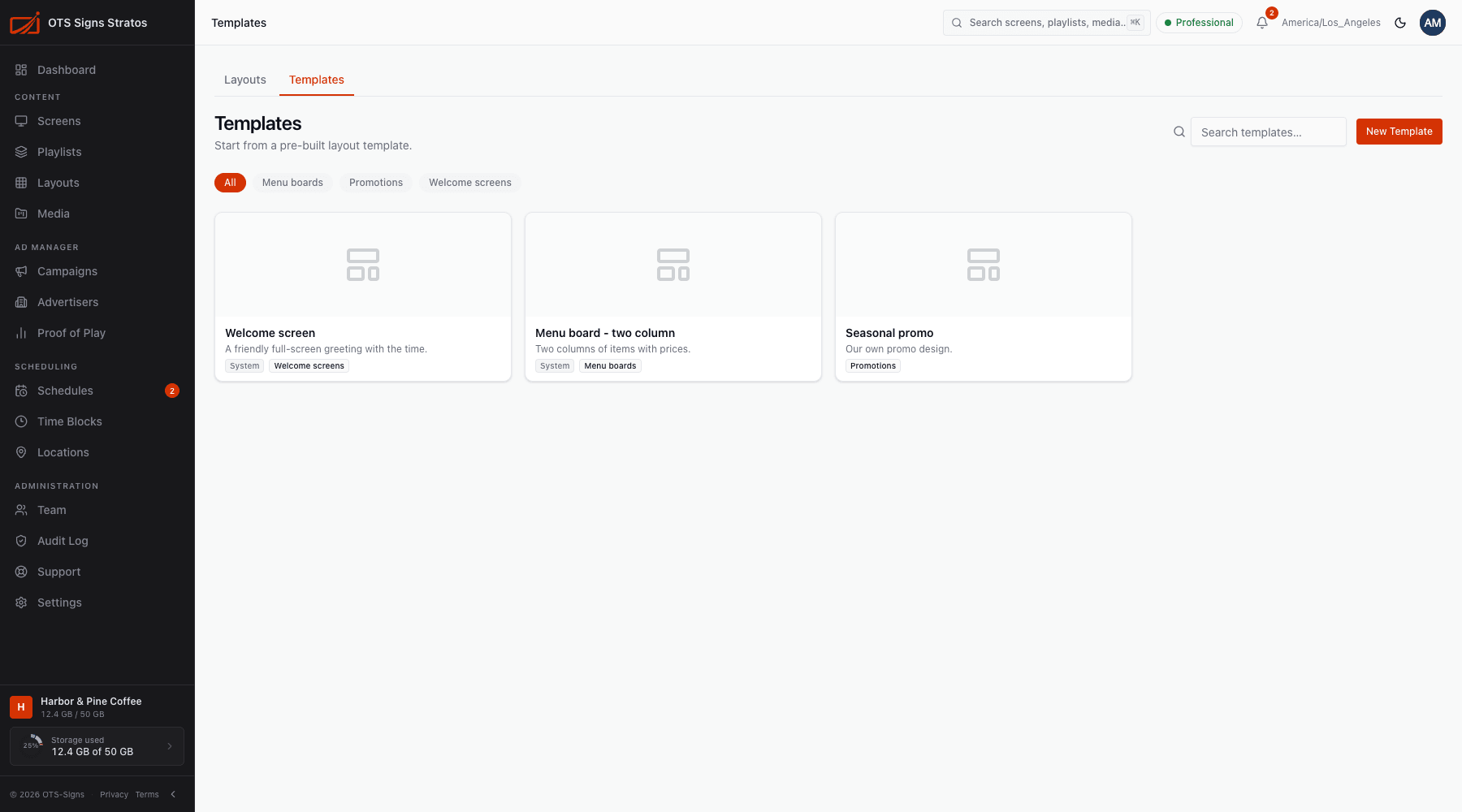
Browse the gallery
Section titled “Browse the gallery”Search templates by name and filter by category. Each card shows a preview, the name and its description. There are two kinds:
- System templates (marked with a System badge) are provided by Stratos to every workspace.
- Your templates belong to your workspace. Anyone in the team can use them.
Click a template to see its preview and details.
Create a layout from a template
Section titled “Create a layout from a template”- Open a template and click Create layout from template, name it and create, or
- Click Create Layout on the Layouts page and choose From template.
The new layout is a draft you can edit freely. The template itself is never changed.
Save your own template
Section titled “Save your own template”There are two ways.
From the Templates page: click New Template, choose the Source layout, enter a Template name, an optional Category (for example Welcome screens, Menu boards) and Description, and save (Template created).
From the designer:
- Open a layout in the designer.
- Click Publish → Save as template…
- Enter a Template name, an optional Category (for example Lobby, Menu, Events) and a Description (“When should people use this template?”), up to 500 characters.
- Save. A confirmation says Template saved.
You can also choose Create Template from a layout’s row menu in the Layouts list.
Media files used in a template stay in your Media Library. Make sure the people using the template can access them.
Manage your templates
Section titled “Manage your templates”Open a template of your own and use Edit (or the manage button on its card) to change its Template name, Category or Description. Your own templates can be deleted with Delete. System templates can’t be edited or deleted. All of this needs layouts:write.