
Navigating the Dashboard
Read your dashboard at a glance, and customise the stats and widgets to suit you.
The Dashboard is your home page. It greets you by name and summarises the health of your screens, schedules, storage and campaigns. It refreshes itself every 30 seconds.
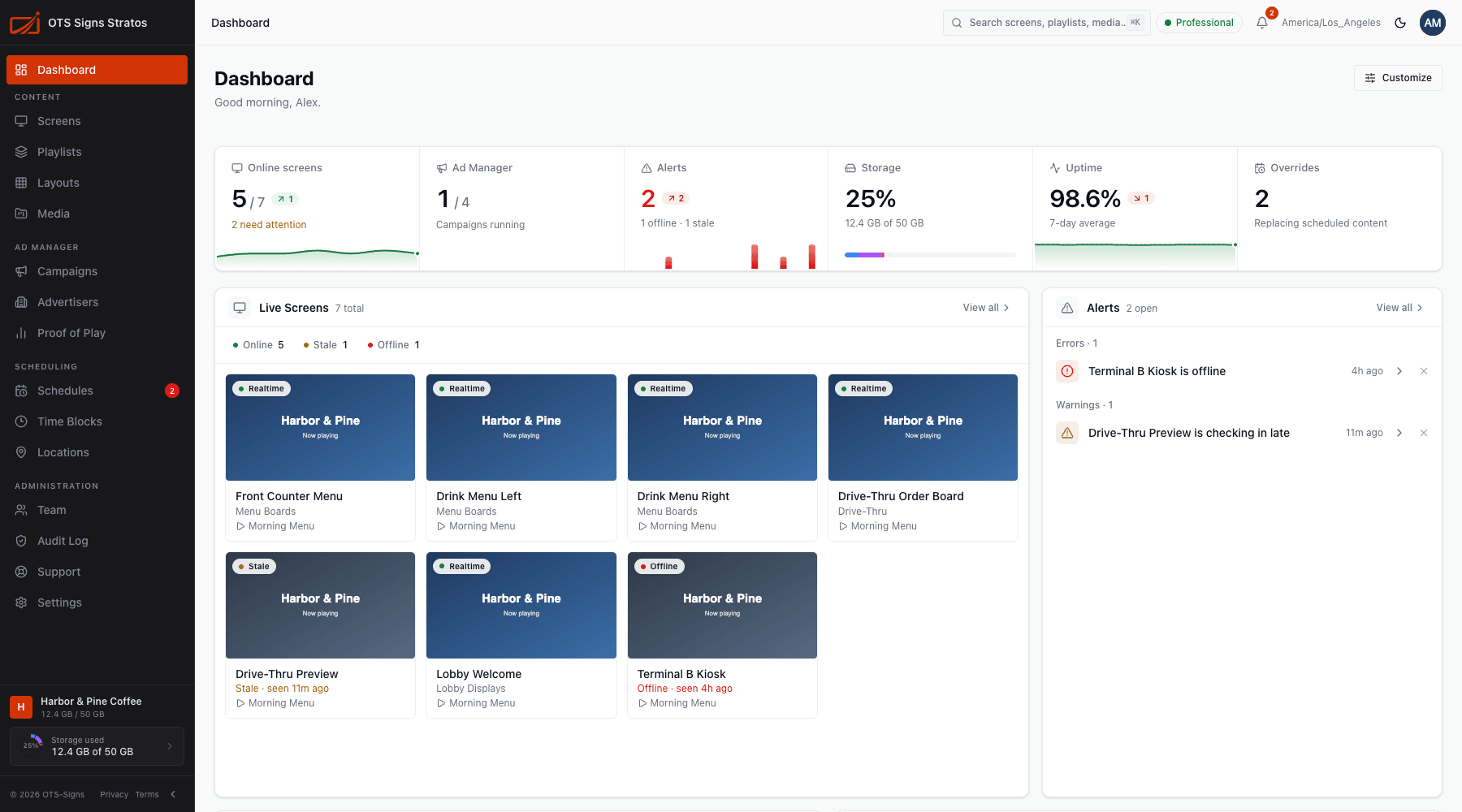
The stat bar
Section titled “The stat bar”A row of stat cards across the top. Each is clickable and many show a small trend.
| Stat | Shows |
|---|---|
| Online screens | Screens online out of the total, and how many need attention. |
| Ad Manager | Running campaigns (if your plan includes it). |
| Alerts | Offline and stale screens. |
| Storage | Storage used against your plan. |
| Uptime (7d) | Average uptime over the last week. |
| Active Overrides | How many overrides are running. |
You can also add Total Screens, Campaigns, Screen Health, Deployments and Content Plays.
Widgets
Section titled “Widgets”Below the stats is a grid of widgets:
| Widget | Shows |
|---|---|
| Live Screens | A card per screen with a live preview and status. Filter by Online, Stale or Offline. |
| Alerts | Offline and stale screens that need attention. |
| Quick Actions | Shortcuts: Add screen, Upload media, Create playlist, View schedules, Manage groups, Deploy content (overrides) and Ad Manager. |
| Deployment Queue | Active and scheduled deployments, such as a layout publishing to screens. |
| Playback Health | Daily uptime over 7, 14 or 30 days. |
| Storage Overview | Storage usage and breakdown. |
| Campaign Summary | Active, upcoming and expired campaigns. |
| System Activity | A feed of recent changes from the audit log. |
| Onboarding Checklist | Your setup progress. See Your First 5 Minutes. |
| Screen Health | Online, offline and stale breakdown (off by default). |
Click a widget’s heading or View all to jump to the page behind it.
Customise the dashboard
Section titled “Customise the dashboard”Click Customize at the top right.
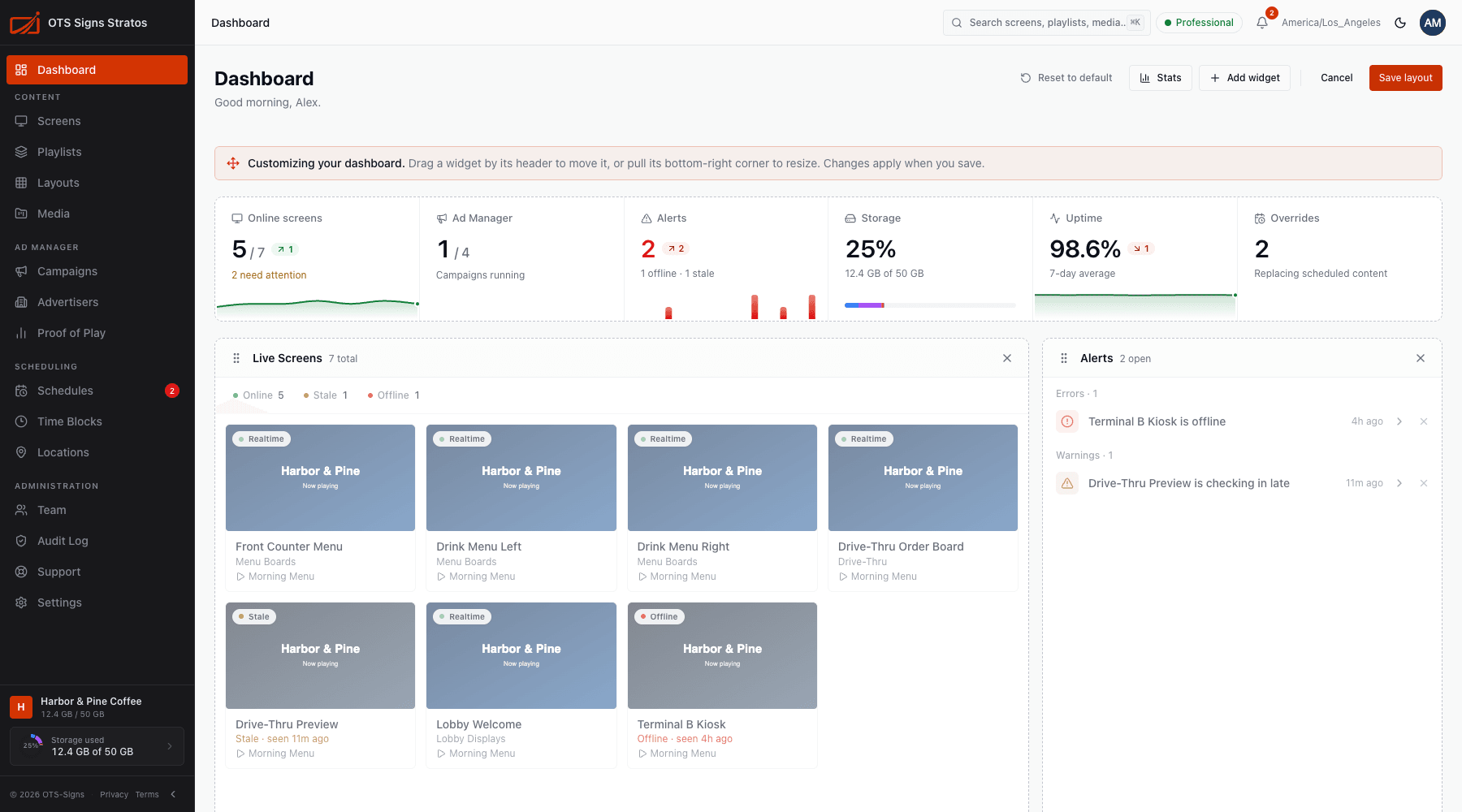
- Stats chooses and orders the stat cards.
- Add widget opens the widget catalogue.
- Drag a widget by its header to move it, and pull its bottom-right corner to resize (on larger screens).
- Remove a widget with its ✕ (you must keep at least one).
- Reset to default restores the original layout.
- Save layout applies your changes, or Cancel (or Esc) to discard.
Your layout is saved to your account and follows you between devices. On small screens widgets stack in one column.
The bell and alerts
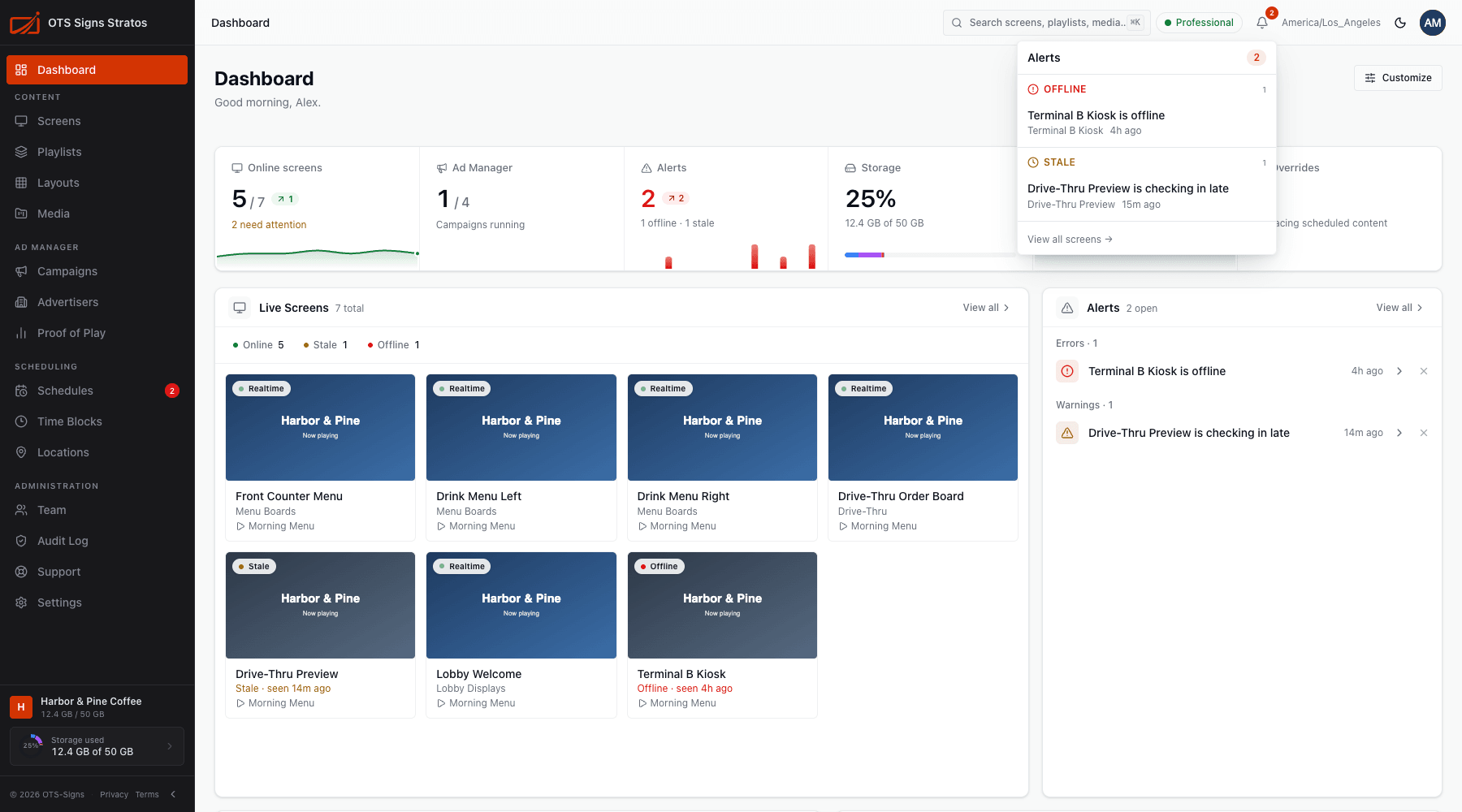
Section titled “The bell and alerts”The bell in the top bar shows how many screens need attention, grouped into Offline, Stale and System. Click one to open that screen. See Screen Health.
Trial and billing banners
Section titled “Trial and billing banners”During a trial a banner counts down your remaining time. If a payment is overdue, a banner explains what’s happening. See Billing Status.