
Overrides
Temporarily replace what a screen or location plays, now or at a set time, then return to normal.
An override temporarily replaces a screen’s scheduled content. Use it for something urgent or one-off: a fire-drill notice, a flash sale, a sports game. When the override ends (or you cancel it) the screen returns to its normal schedule. Nothing in your schedules is changed.
Where to find it: Schedules in the sidebar, then the Overrides tab. You need overrides:read to see them and overrides:write to create and cancel them.
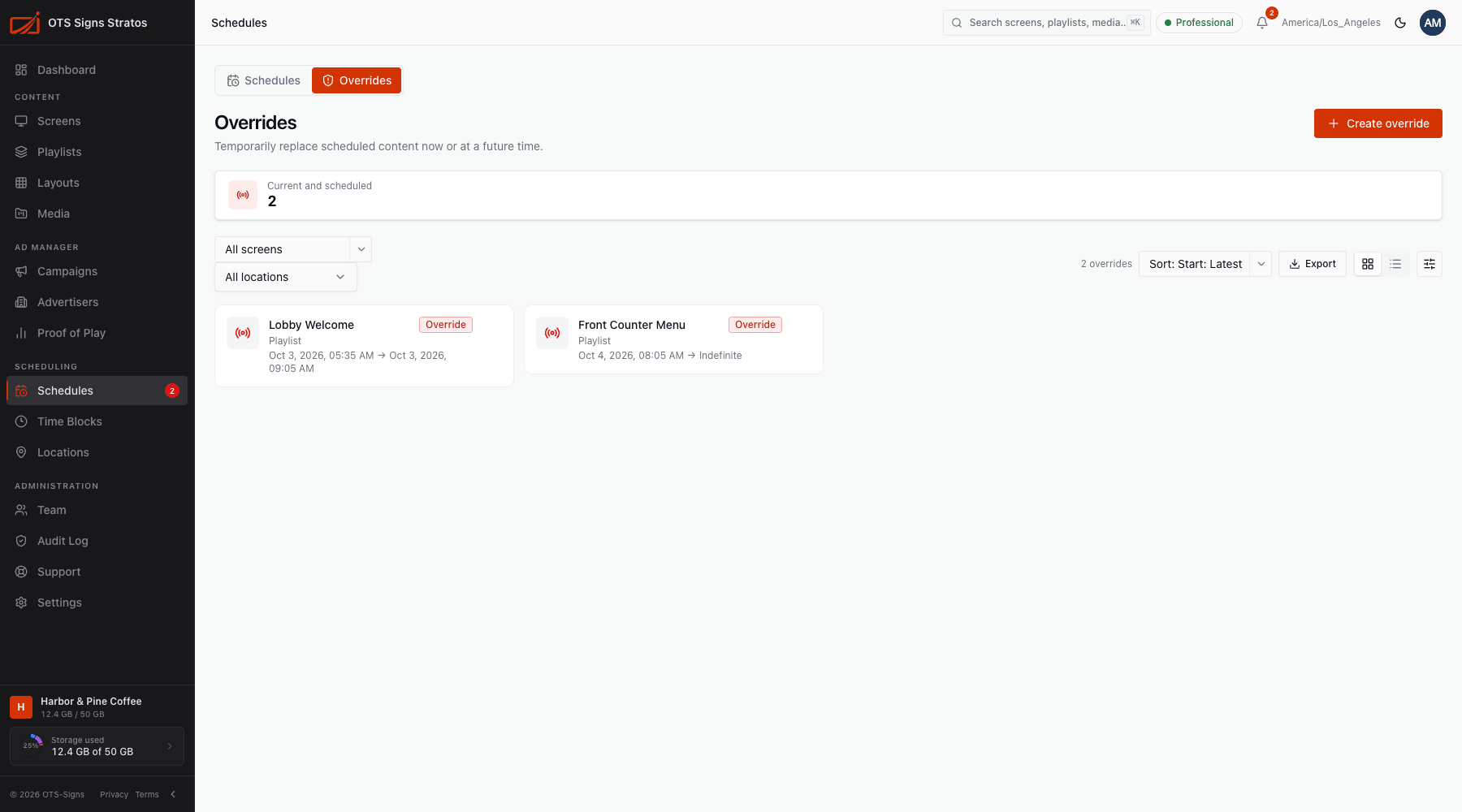
The Overrides tab
Section titled “The Overrides tab”The Current and scheduled tile counts overrides that are running or yet to start. Each override appears as a card (or row) with an Override badge, the screen, what it plays (Playlist, Media Item or Layout) and its start and end. Past overrides aren’t shown.
Filter by screen or location, sort by start, and Export. The Schedules item in the sidebar shows a red count while overrides are active.
Click an override to see its details: Screen, Content, Starts, Ends (or Indefinite), Created and the Reason.
Create an override
Section titled “Create an override”Click Create override.
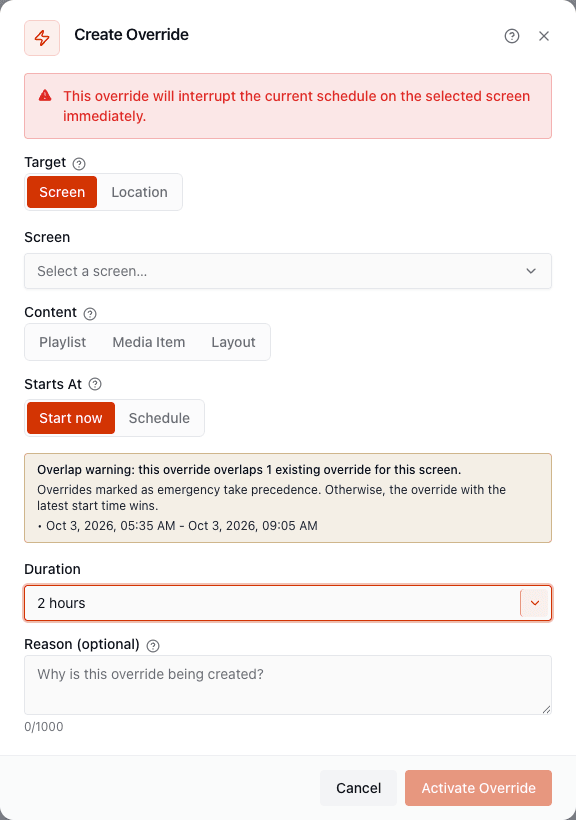
- Target: a Screen, or a Location (every screen currently there).
- Content: a Playlist, Media Item or Layout. For a media file you can set a Duration; leave it empty to use the file’s default.
- Starts at: Start now, or Schedule a future date and time.
- Duration: 30 minutes, 1, 2, 4, 8 or 24 hours, or Indefinite.
- Reason (optional, up to 1,000 characters): a note for your team and the audit trail.
- Click Activate Override (or Schedule override for a future start).
A location override creates one override per screen at that location, in one go. If the location has no screens, or you lack access to one of them, Stratos says so and doesn’t create any.
Overlapping overrides
Section titled “Overlapping overrides”If a new override overlaps an existing one on the same screen, the dialog shows an overlap warning listing the times. The override with the latest start time wins, unless one is marked emergency, which always takes precedence.
Cancel an override
Section titled “Cancel an override”Open the override and click Cancel override, or use Cancel on its card. The screen returns to its normal schedule right away. Select several overrides to cancel them together.
Emergency overrides
Section titled “Emergency overrides”An emergency override beats everything, including other overrides. The Stratos mobile app creates them with Quick publish: choose content, pick one or more screens, set how long it should run (15 minutes up to 7 days) and tap Publish now. All selected screens go live together, and the override expires by itself. See The Mobile App.
Overrides vs schedules
Section titled “Overrides vs schedules”| Use a… | When |
|---|---|
| Schedule | Content that repeats, or is planned ahead. |
| Override | A one-off interruption you’ll want to disappear on its own. |
| Emergency override | Something that must show everywhere, immediately. |