
Roles & Permissions
The built-in roles, what each can do, and how permissions combine with groups and folders.
Access in Stratos is built from permissions (single abilities such as Create and edit playlists), bundled into roles, and given to people directly or through groups. A person’s access is the combination of all of them.
How access is worked out
Section titled “How access is worked out”- A person has a role (their direct role), for example Editor.
- They also get the roles of every group they belong to. Everyone is automatically in All users, so roles on that group apply to the whole workspace.
- Their access is everything those roles allow, added together.
- For content kept in folders, folder grants can add or remove access to specific folders. See Folder Access.
If someone can’t see a page or button, they lack the permission it needs. Pages tell you which one (for example You don’t have access to the audit log).
Built-in roles
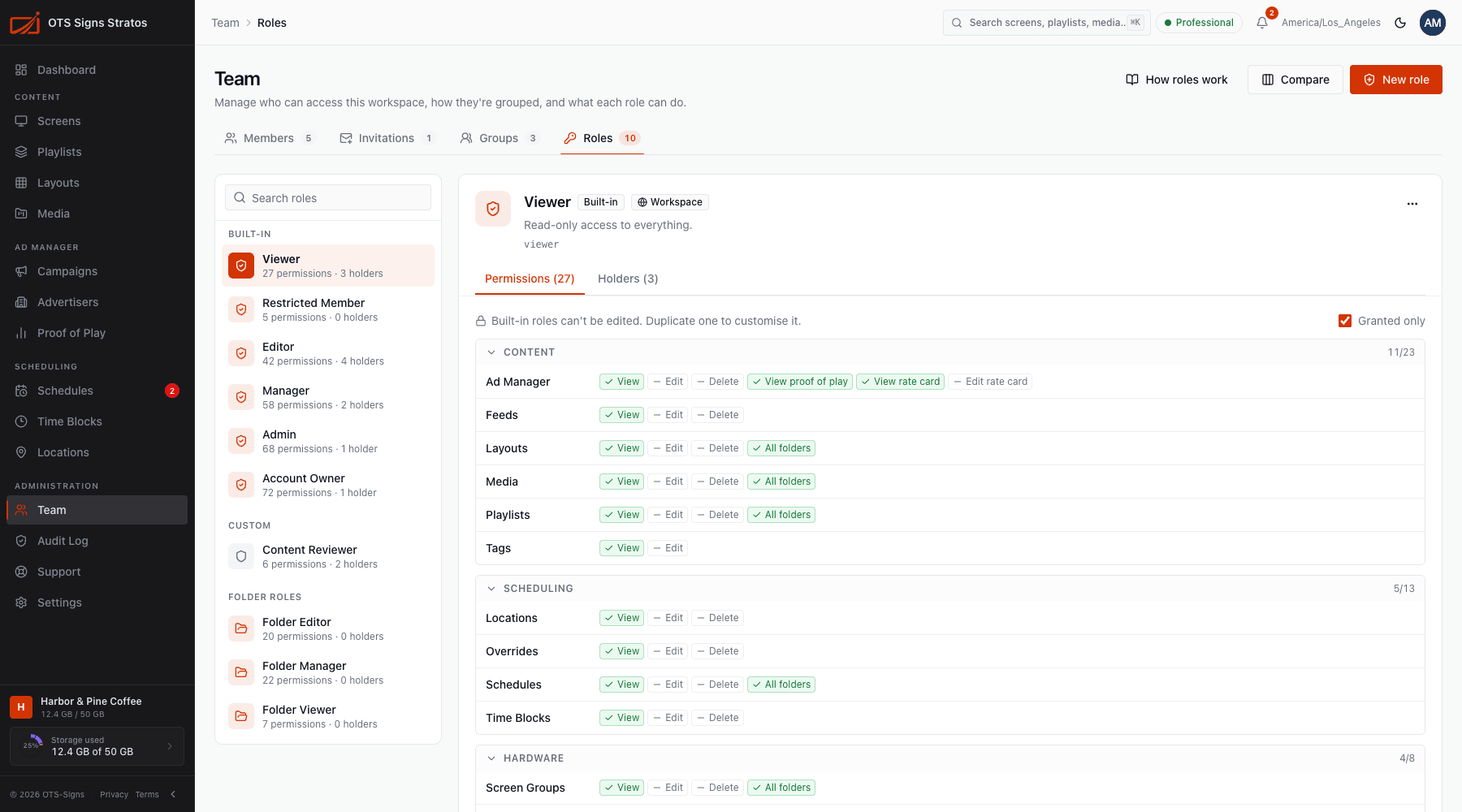
Section titled “Built-in roles”These come with every workspace and can’t be edited. To customise, duplicate one into a custom role.
| Role | Meant for | Highlights |
|---|---|---|
| Viewer | Stakeholders who watch but don’t change things. | View everything: screens, playlists, layouts, media, schedules, proof of play. No edits. |
| Editor | Content creators. | Everything Viewer can do, plus create, edit and delete media, playlists, layouts, tags and feeds, and manage ad campaigns and advertisers. Cannot change schedules or screens. |
| Manager | Operations leads. | Full content and scheduling (schedules, overrides, time blocks, locations), edit screens and screen groups, manage folders and campaigns, manage support tickets. Cannot delete screens or manage people. |
| Admin | Workspace administrators. | Everything Manager can do, plus delete screens, manage members, groups and roles, folder access, workspace settings, integrations and the audit log. |
| Account Owner | The accountable person. | Everything, including billing (plan, invoices, add-ons) and developer tools (API keys, webhooks). Each workspace has at least one. |
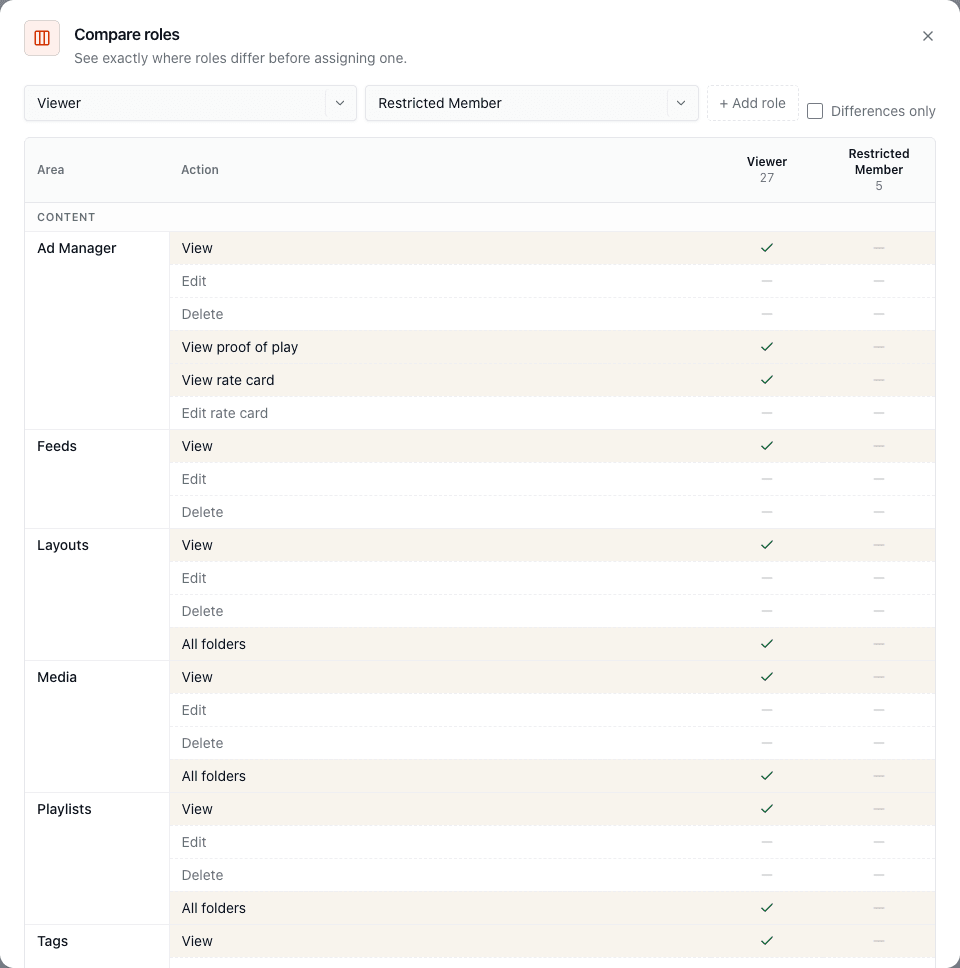
| Restricted Member | People who should only reach specific folders. | Almost nothing by default. Access comes entirely from folder grants. |
Folder roles
Section titled “Folder roles”Three more roles exist for use in folder grants only:
| Role | Allows, inside the folder |
|---|---|
| Folder Viewer | View media, playlists, schedules, layouts, screens and screen groups. |
| Folder Editor | View, create, edit and delete those items. |
| Folder Manager | Everything Folder Editor can, plus delete folders and manage who else has access. |
Comparing roles
Section titled “Comparing roles”On the Roles tab, pick a role to see its Permissions (grouped by area, with View, Edit and Delete chips and an All folders marker where it bypasses folder restrictions) and its Holders (who has it). Compare puts roles side by side to show exactly where they differ.
The permissions
Section titled “The permissions”Permissions are named area:action. These are the areas you’ll see:
| Area | Permissions |
|---|---|
| Media, playlists, layouts | read, write, delete, access_all |
| Schedules | read, write, delete, access_all |
| Overrides | read, write, delete |
| Screens, screen groups | read, write, delete, access_all |
| Time blocks, locations | read, write, delete |
| Folders | read, write, delete, manage_access |
| Tags | read, write |
| Feeds | read, write, delete |
| Ad Manager | campaigns read/write/delete; proof of play read; rate card read/write |
| Advertisers | read, write, delete |
| Team | users read/write; user groups read/write; roles read/write; access read |
| Workspace | read, write |
| Billing | read, write |
| Developer integrations | API keys and webhooks, read, write |
| Integrations | read, write |
| Support | read, write, manage |
| Audit log | read |
access_all
Section titled “access_all”access_all on media, playlists, schedules, layouts, screens or screen groups means workspace-wide access that ignores folder restrictions. Roles without it can only reach content through folder grants.
Good practice
Section titled “Good practice”- Give people the least role that works, and use groups to share the same access across a team.
- Keep few Account Owners and Admins.
- Use Restricted Member plus folder grants for agencies, franchisees and contractors who should only see their own content.
- Review the Holders of powerful roles now and then, and check the audit log.