
Time Blocks
Save daily windows like "Lunch rush" once and reuse them across many schedules.
A time block is a named daily window, such as Breakfast 6:00 to 11:00 on weekdays. Save it once and pick it in any schedule. Change the block and every schedule using it changes with it.
Where to find it: Time Blocks in the sidebar (or Time blocks on the Schedules page). You need time_blocks:read, and time_blocks:write to create and edit.
The Time Blocks page
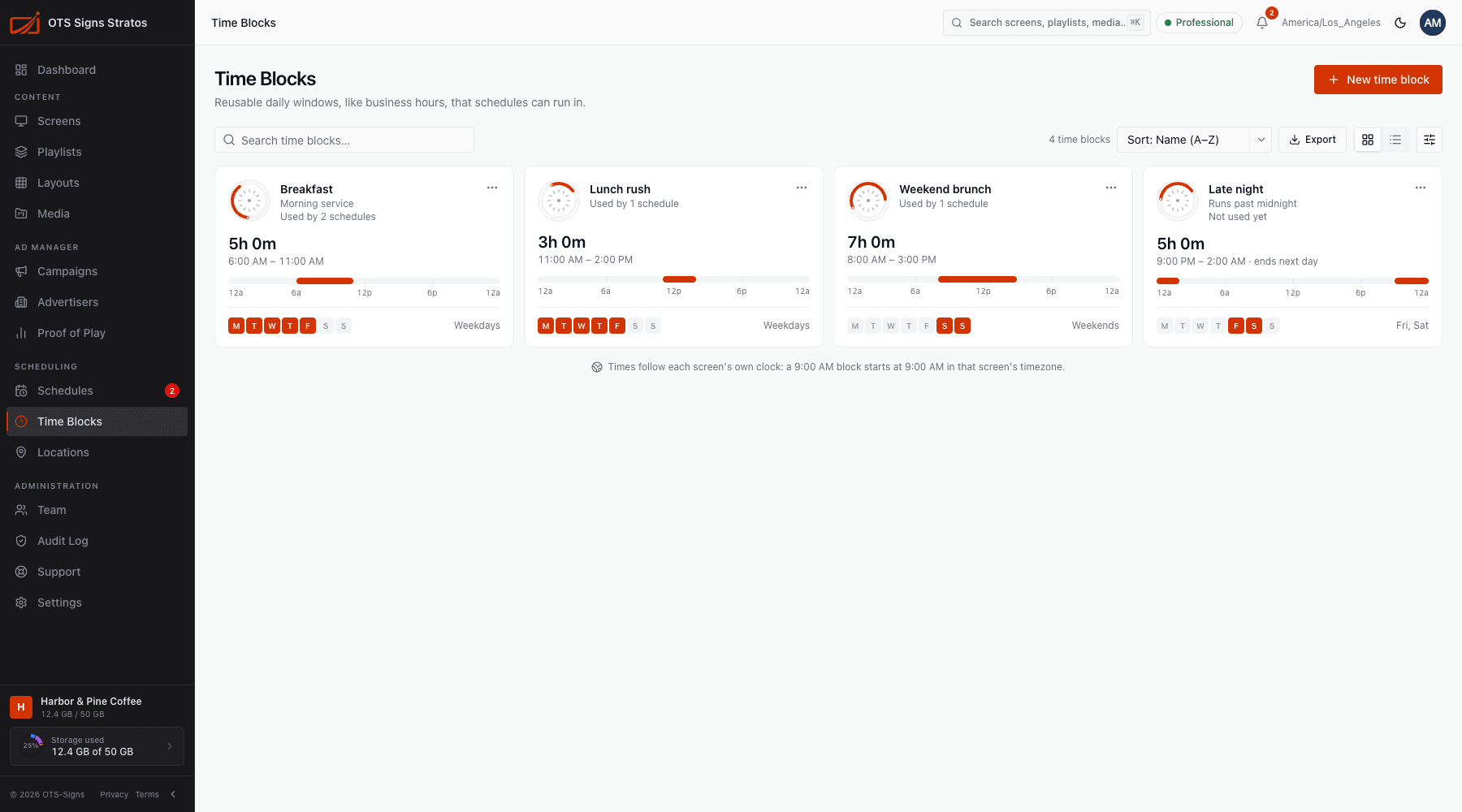
Section titled “The Time Blocks page”Each block is a card showing a clock face, its name and description, how many schedules use it (Used by 2 schedules, or Not used yet), its duration, its hours (an overnight block says ends next day) and which days it runs, as a 24-hour bar and day chips. A note at the bottom reminds you that times follow each screen’s own clock.
Switch between grid and list views (the list adds Days, Hours, Duration, Schedules and Updated columns). Search by name, sort, and Export to CSV.
Create a time block
Section titled “Create a time block”Click New time block.
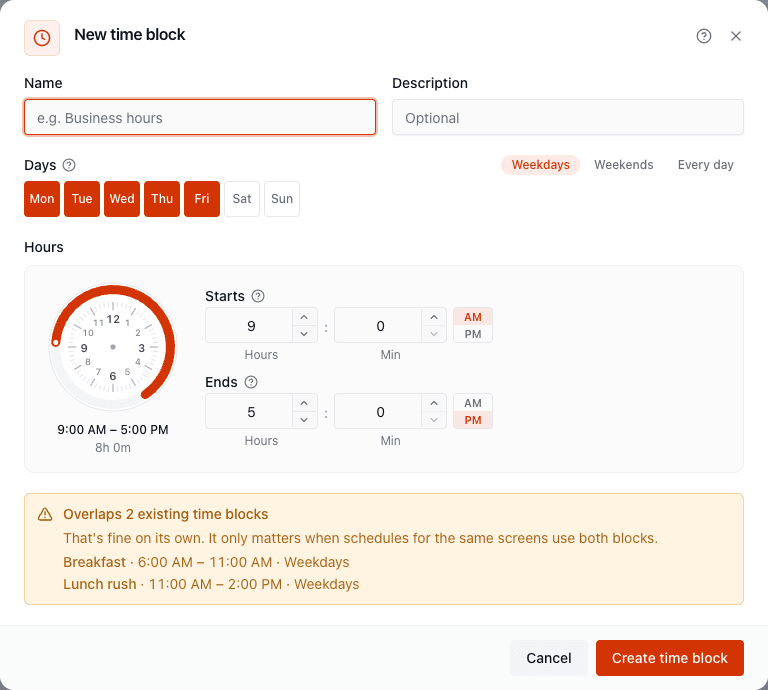
| Field | Notes |
|---|---|
| Name | Required, under 255 characters, for example Business hours. |
| Description | Optional. |
| Days | Pick at least one day, or use the presets: Every day, Weekdays, Weekends. |
| Start / End time | The window, on each screen’s own clock. An end before the start runs past midnight into the next day. Start and end must be different. |
Two blocks that overlap are fine on their own. It only matters when schedules for the same screens use both. Priority & Conflicts explains what happens then.
Use a time block in a schedule
Section titled “Use a time block in a schedule”In the schedule form, step Hours, choose Time block and select it. For daily and weekly repeats the schedule then runs on the block’s days. For monthly, yearly and one-off repeats only the block’s hours are used.
Edit and delete
Section titled “Edit and delete”- Editing a block changes every schedule that uses it, for all days and hours. The dialog warns you, and the page shows how many schedules are affected. To avoid surprises, create a new block instead of editing a shared one.
- A block that schedules still use can’t be deleted. Switch those schedules to other hours or another block first. The delete dialog tells you how many there are.