
Creating Layouts
Create a layout from a blank canvas, a media file or a template, and manage the Layouts list.
A layout is a full-screen design made of elements: images, video, playlists, text, shapes and widgets such as clocks and menu boards, positioned on a canvas the size of your display. Use a layout when you want more than one thing on screen at once, such as a menu with a clock, a promo and a QR code.
Where to find it: Layouts in the sidebar. You need layouts:read to browse and layouts:write to create and edit.
Create a layout
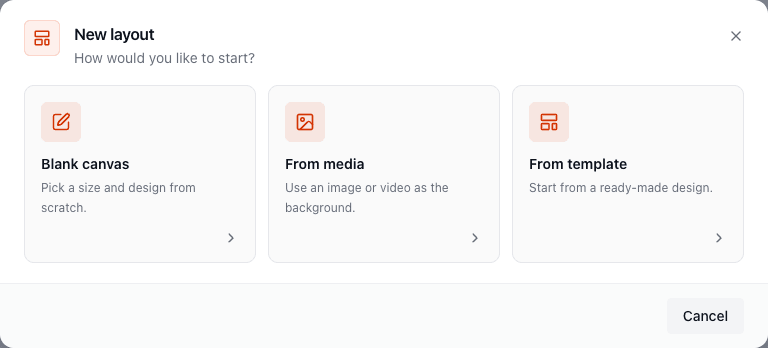
Section titled “Create a layout”Click Create Layout. The New layout dialog asks How would you like to start?, then collects the details.
Blank canvas
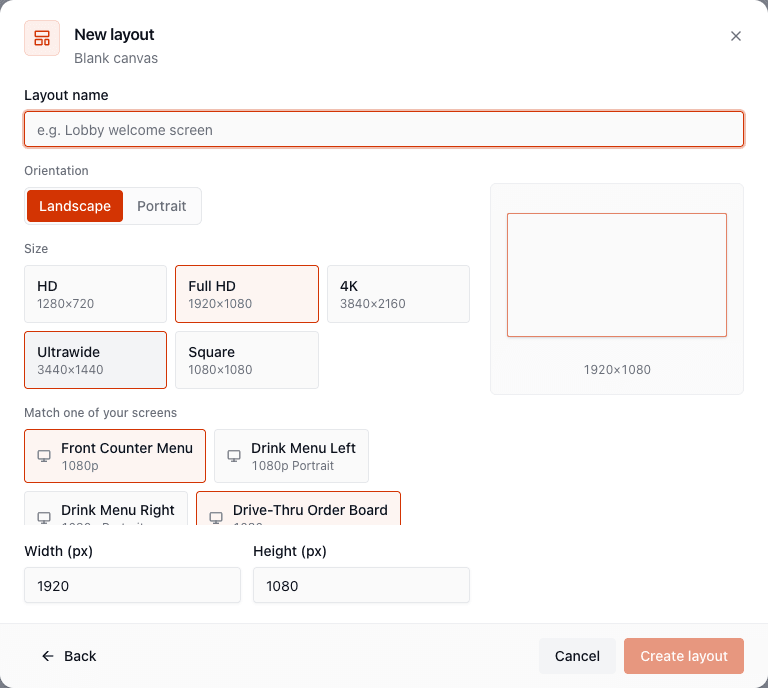
Section titled “Blank canvas”Pick a size and design from scratch.
- Enter a Layout name, for example Lobby welcome screen.
- Choose Landscape or Portrait.
- Pick a size preset (HD 1280×720, Full HD 1920×1080, 4K 3840×2160, Ultrawide 3440×1440, Square 1080×1080), match one of your screens so the layout fits it exactly, or enter a custom Width and Height.
- Click Create layout. The designer opens.
From media
Section titled “From media”Use an image or video as the background. Choose the file under Background media, set the size as above and create. You can add elements on top of it.
From template
Section titled “From template”Start from a ready-made design. Search and filter the templates, choose one and name your new layout. See Templates.
Layout status
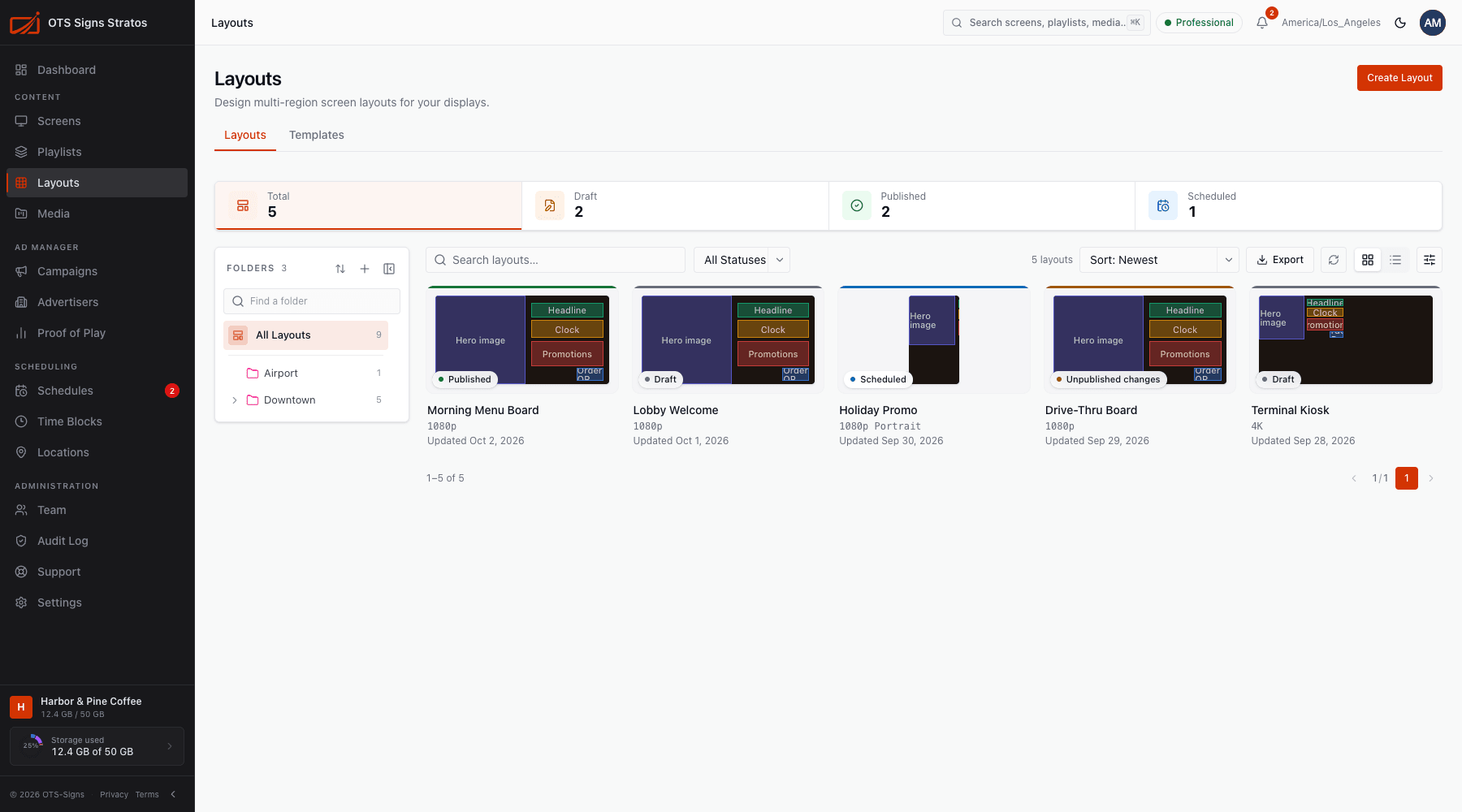
Section titled “Layout status”Every layout has a status badge. A live layout that has been edited since it was published shows Unpublished changes.
| Status | Meaning |
|---|---|
| Draft | Never published. Screens can’t show it yet. |
| Published | Live. Screens show this version. |
| Scheduled | A publish is queued for a future time. |
The summary tiles (Total, Draft, Published, Scheduled) double as filters. See Publishing Layouts for how changes go live.
Working in the list
Section titled “Working in the list”The list shows each layout as a card with a thumbnail of its arrangement, its status, size and last-updated date. Switch to the list view for columns (Name, Status, Dimensions, Regions, Published and Updated). Search by name, filter by status, sort, choose columns, organise in folders, use saved views, and Export to CSV.
Row actions (right-click or the actions menu):
| Action | Does |
|---|---|
| Edit | Opens the designer. |
| Preview | Shows the layout in a preview window. |
| Rename | Edits the name in place. |
| Move to Folder | Files it in another folder. |
| Copy ID | Copies the layout ID. |
| Create Template | Opens the layout so you can Save as template. |
| Check Out | For a published layout, makes an editable draft copy. See Publishing Layouts. |
| Discard Draft | Deletes a checked-out draft. |
| Publish | Publishes a draft layout. |
| Delete | Removes the layout (needs layouts:delete). |
Select several rows for bulk Move or Delete. See Bulk Actions.
The Templates tab at the top switches to the template gallery.