
Creating a Playlist
Create manual and smart playlists, and find your way around the Playlists list.
A playlist is a reusable sequence of content: images, videos, layouts and web links. A playlist says what plays. A schedule says where and when. One playlist can be used by many schedules, screens and layouts.
Where to find it: Playlists in the sidebar. You need playlists:read to browse and playlists:write to create and edit.
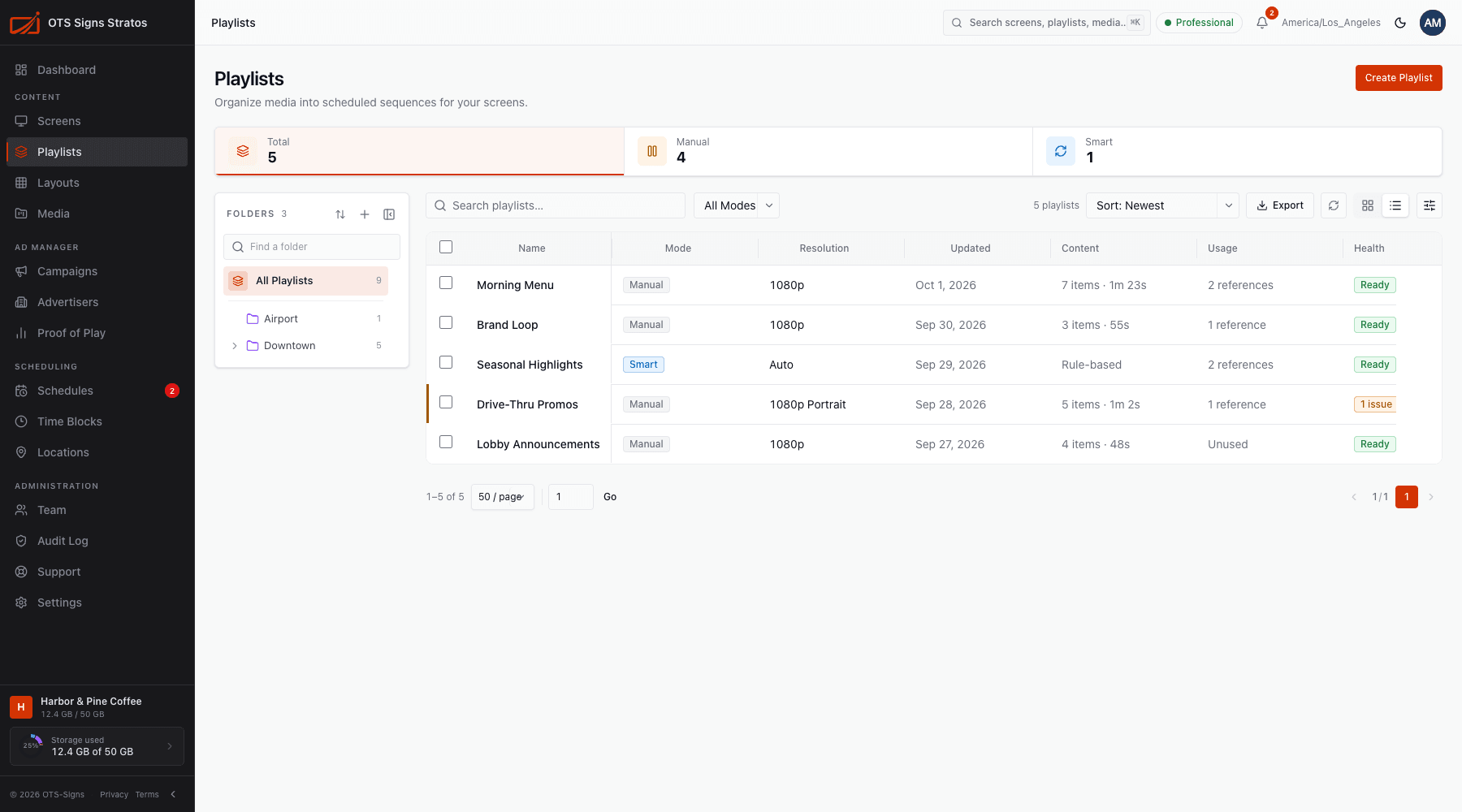
Create a playlist
Section titled “Create a playlist”- Click Create Playlist.
- Enter a Name, for example Lobby announcements.
- Choose the type:
- Manual playlist: you choose, order and time every item.
- Smart playlist: rules choose the content when it plays. See Smart Playlists.
- Optionally expand Advanced to choose a Folder, tags and a target canvas (Auto, 1080p, Portrait 1080×1920, 4K, Square 1080×1080, or a custom width and height).
- Click Create playlist. You land in the playlist editor.
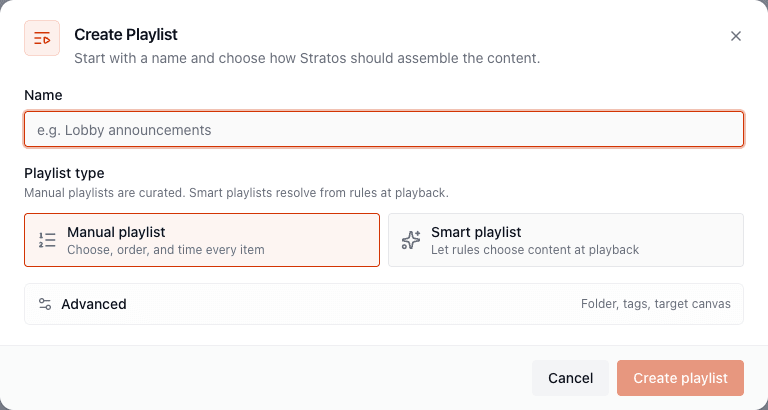
The Playlists list
Section titled “The Playlists list”Summary tiles show Total, Manual and Smart counts. Click a tile to filter by type.
| Column | Meaning |
|---|---|
| Name | Click to open the editor. |
| Mode | Manual or Smart. |
| Resolution | The target canvas, or Auto. |
| Updated | When it was last saved. |
| Content | Item count and loop length (manual), or Rules-based (smart). |
| Usage | How many places use it (for example 2 references), or Unused. |
| Health | Flags playlists that need attention, such as expired or unavailable items. |
You can search by name, filter by mode, sort, pick columns, use folders and saved views, and Export the list to CSV. On a narrow screen the list becomes cards.
Row actions
Section titled “Row actions”Right-click a row or open its actions menu:
| Action | Does |
|---|---|
| View / Edit | Opens the editor. |
| Preview | Plays a simulation of the playlist. See Previewing a Playlist. |
| Rename | Edits the name in place. |
| Edit settings | Opens the editor on its Settings tab. |
| Duplicate | Copies the playlist, its settings, folder and tags. Schedules and live assignments are not copied. |
| Move to Folder | Files it in another folder. |
| Copy ID | Copies the playlist ID. |
| Delete | Removes the playlist (needs playlists:delete). |
Select several rows for bulk Move and Delete. See Bulk Actions.