
Publishing Layouts
Publish, schedule, edit and roll back layouts safely, with drafts and approvals.
Editing a layout and showing it on screens are two different things. You work on a draft, and screens only change when you publish. That lets you design freely without affecting what’s live.
Publish a new layout
Section titled “Publish a new layout”In the designer, click Publish.
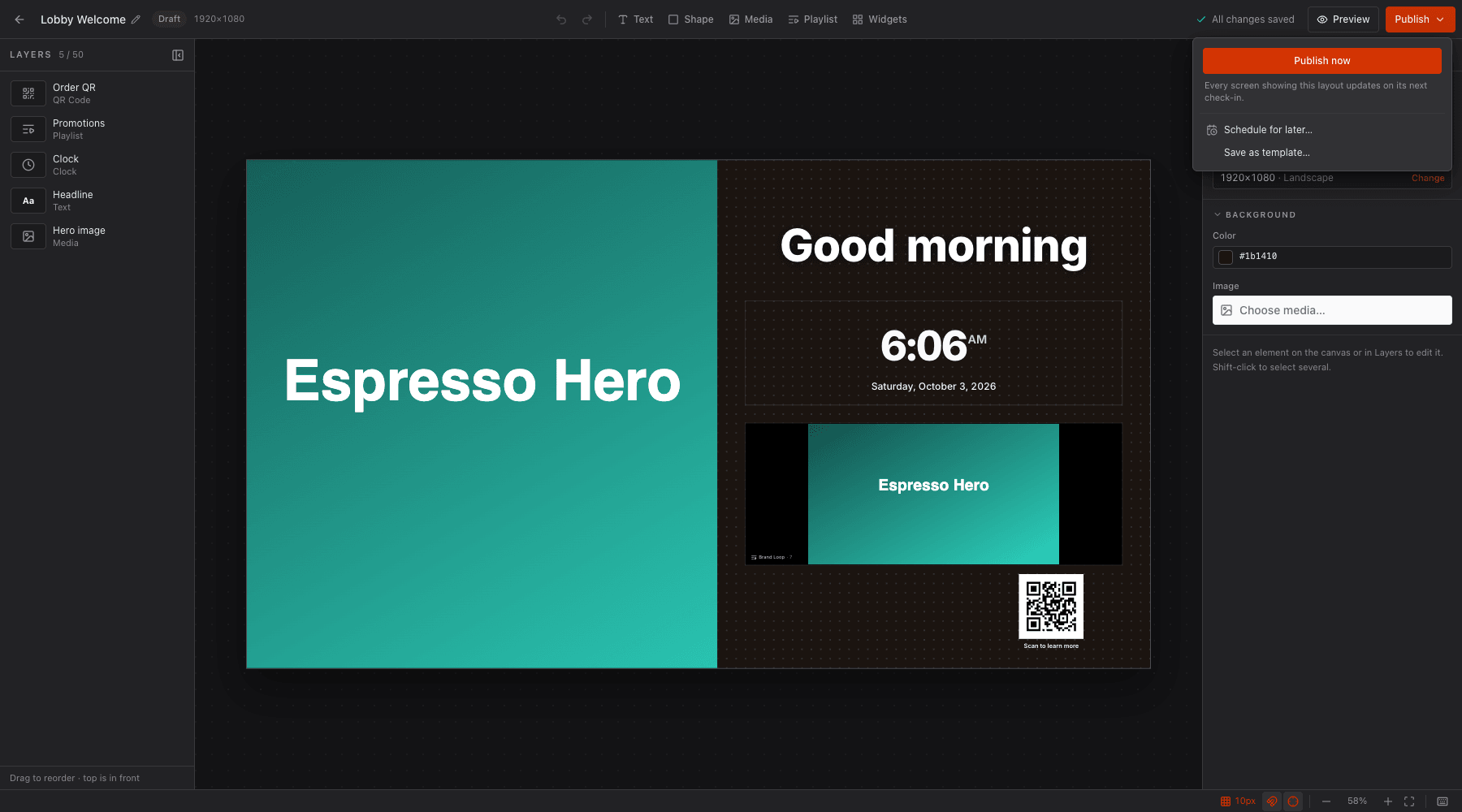
- Publish now: every screen showing this layout updates on its next check-in.
- Schedule for later…: pick a Date and Time in the future. Screens switch to this version at that time. Use Reschedule… or Cancel scheduled publish to change your mind.
- Save as template…: see Templates.
If something would stop a publish, the menu shows Fix before publishing instead of the button, listing each problem (for example a widget that needs a feed, or an element with no content). Click an item to jump to the field.
After publishing the badge changes to Published and a confirmation says Layout published — screens will update shortly.
Editing a live layout
Section titled “Editing a live layout”A published layout opens read-only (Viewing the published version). To change it:
- Click Edit (creates draft) in the designer, or Check Out in the Layouts list.
- Stratos makes a draft copy, labelled Draft of published. Edit it freely. Autosave keeps it safe and screens keep showing the published version.
- Click Publish when you’re happy. The draft replaces the live version and the draft copy is retired.
From the draft’s Publish menu you can also:
- View published version: jump to the live layout to compare.
- Discard draft…: delete the draft and every change in it. The published version stays on your screens.
- Reset to published version…: replace everything on the canvas with the last published version (undo history is cleared).
In the list, a published layout showing Unpublished changes has edits that aren’t live yet.
What screens see
Section titled “What screens see”Players download the new version on their next check-in, so changes appear within a few minutes. To see for yourself, open the screen’s page and Capture screenshot, or press Refresh content. See The Screen Page.
Layouts are previewed from the designer with Preview (P) or from the list with Preview.
Approvals
Section titled “Approvals”Workspaces can require review before layouts go live. A workspace admin sets this in Display & Publishing under Publishing:
| Setting | Effect |
|---|---|
| Require approval to publish layouts off | Anyone with write access can publish. |
| On, Required | A layout can’t be published until its approval request is approved. |
| On, Recommended | Publishers are warned, but can publish without approval. |
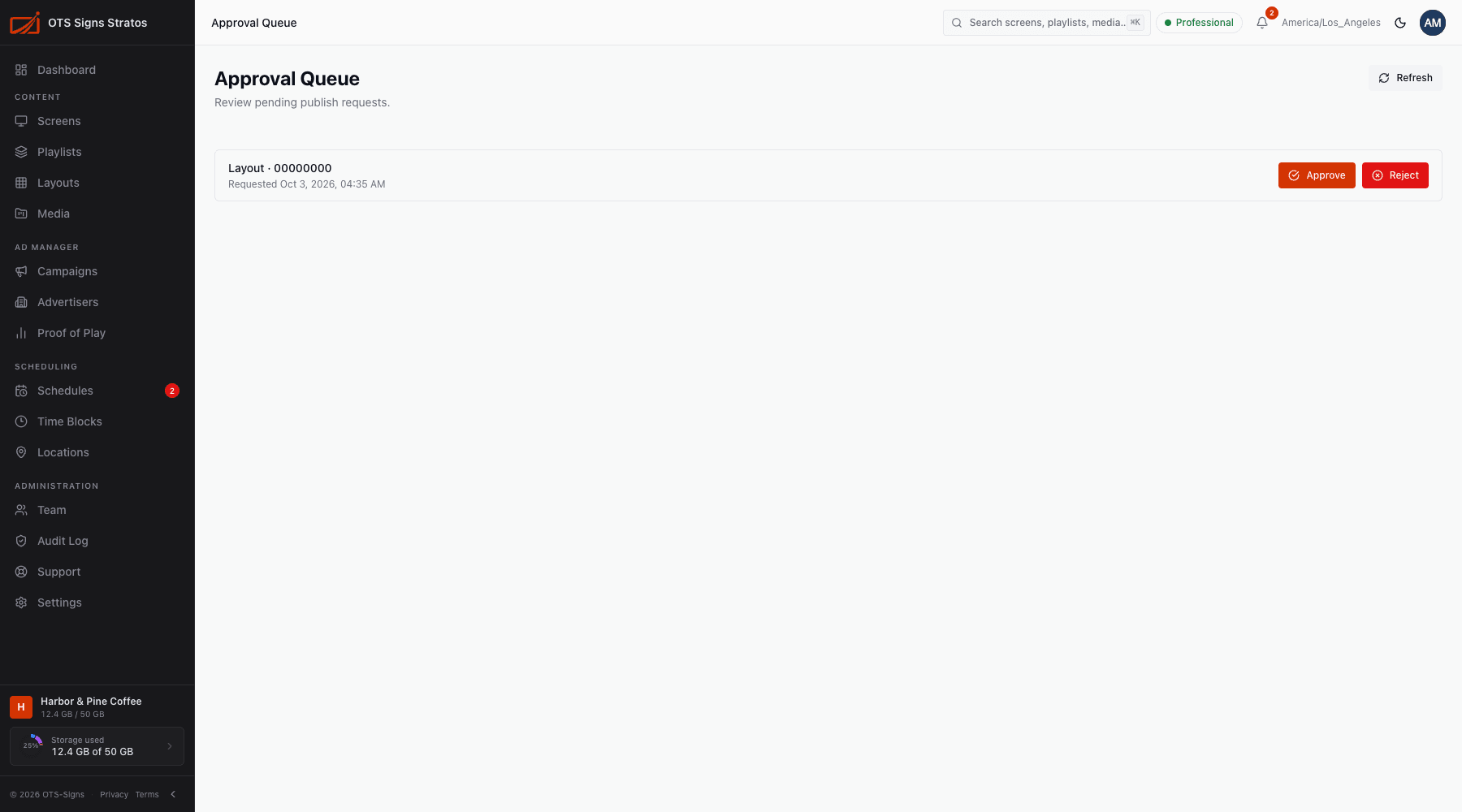
Reviewers see pending requests in the Approval Queue (/approvals), each showing what is being published and when it was requested. For each one they click Approve or Reject and can leave a Reviewer comment: Add approval notes… when approving, or Explain what needs to change… when rejecting. The note is stored with the decision.
Permissions
Section titled “Permissions”| You can… | With |
|---|---|
| View layouts | layouts:read |
| Create, edit, publish | layouts:write |
| Delete | layouts:delete |