
File Details
See everything about a file: preview, properties, where it's used, expiry and analytics.
Click a file in the Media Library to open its page. The top shows a large preview, with badges for its state: Unused, In a playlist, Scheduled, an expiry countdown or Expired, and Processing or Processing failed while it’s being prepared.
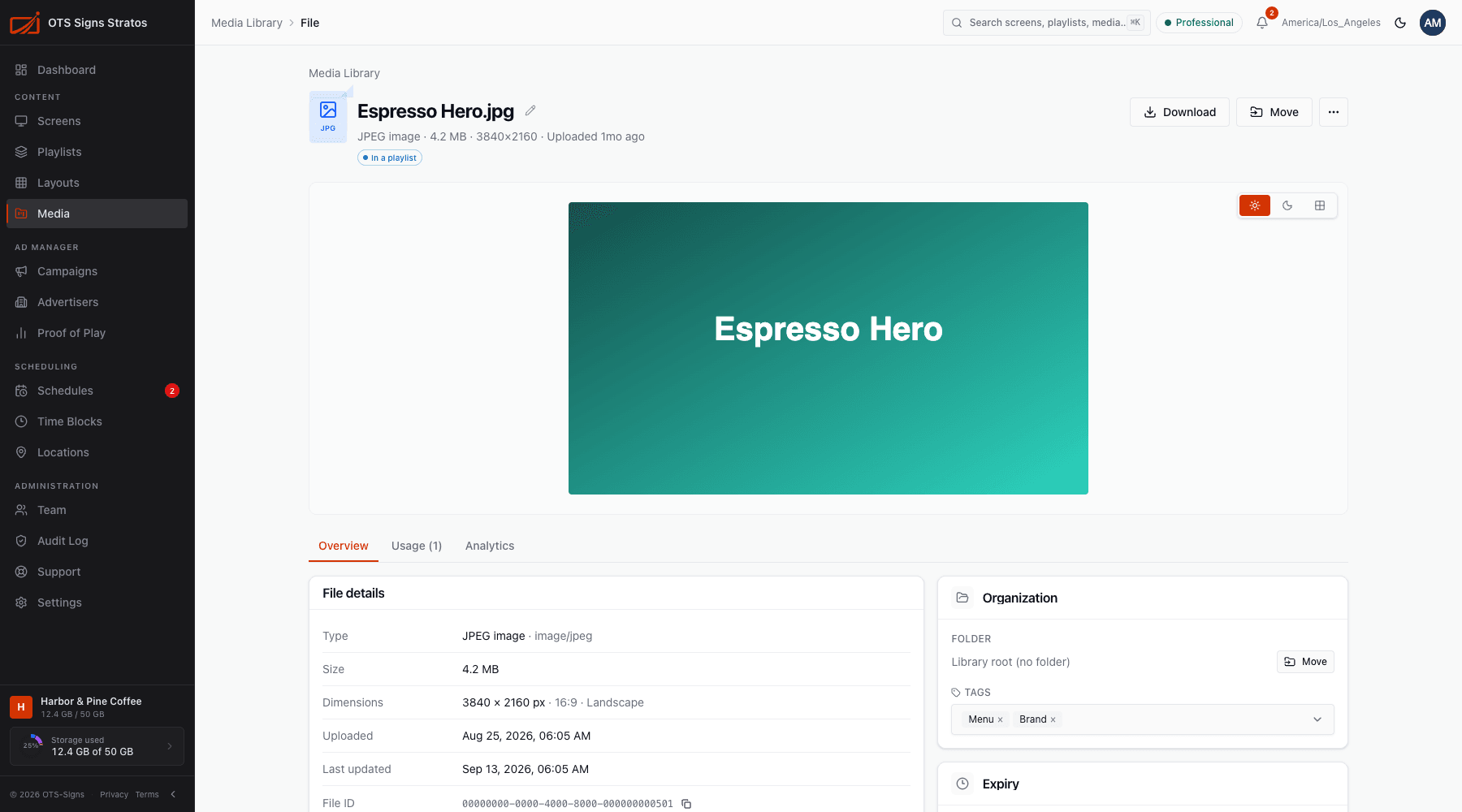
Use the pencil beside the name to rename the file, the Media Library link to return, Download and Move for the common actions, and the ⋯ menu for more (including delete). Above the preview, three small buttons switch the preview background between light, dark and a checkerboard, which is handy for checking transparent PNGs.
Overview
Section titled “Overview”| Section | Shows |
|---|---|
| File details | Type, Dimensions, Duration, Size, Playback format, Uploaded, Last updated, File ID (click to copy), and for documents the Author, Last modified by, Import mode and page, slide or sheet count. |
| Organization | The Folder (change it with Move) and its tags. |
| Expiry | When the file stops playing, or Never expires. |
Expiry
Section titled “Expiry”A file with an expiry date is removed from playback after that moment, in every playlist that uses it, without anyone editing the playlists. Set it when you upload, or on the file’s page. Clear removes it (a notice says Expiry removed). A countdown badge appears as the date approaches, and the library can sort by Expires soonest.
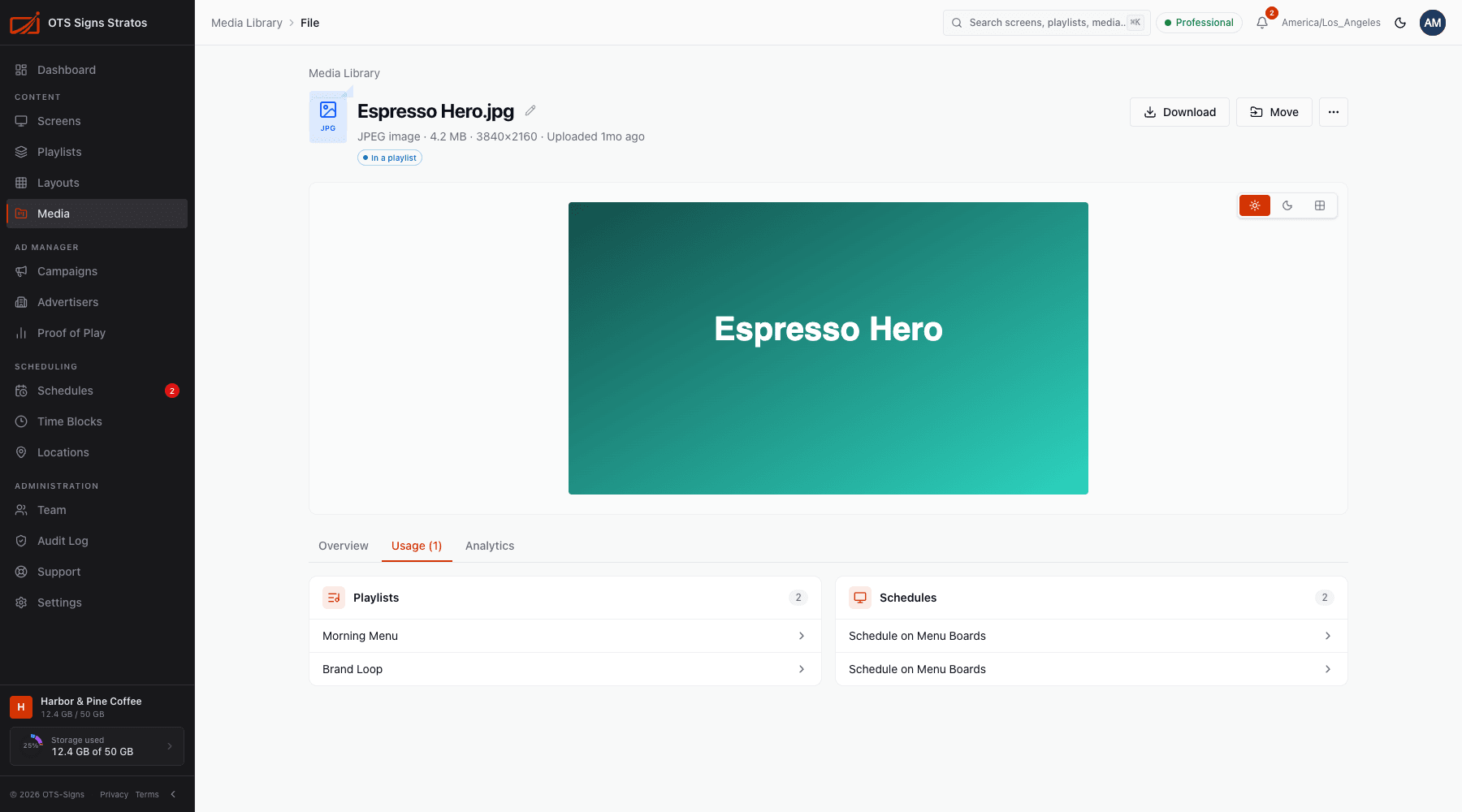
The Usage tab lists the Playlists and Schedules that use the file. If it’s used nowhere, you’ll see Not used anywhere yet, and it can be deleted safely.
Analytics
Section titled “Analytics”The Analytics tab shows how often the file has played, when it last played and its total play time.
Slides
Section titled “Slides”Presentations and documents also have a Slides tab for editing pages and timing. See Documents & Presentations.
Processing
Section titled “Processing”New files are prepared in the background. If one fails, the page shows Processing failed with a Retry button (Retry processing). A retry says Re-queued for processing. This can take a minute or two. If it keeps failing, the file may be damaged. Try exporting it again, or contact support.
Deleting
Section titled “Deleting”Delete removes the file for good. A file that’s in use shows This file is in use and can’t be deleted until you remove it from the playlists, schedules or overrides that use it.