
Campaigns
Create a campaign, add layouts, assign it to screens, and take it through its lifecycle.
A campaign bundles one or more layouts for an advertiser. It rotates them on the screens you assign, tracks delivery and, depending on the billing model, calculates what’s owed.
Where to find it: Ad Manager → Campaigns. You need ad_manager:read, and ad_manager:write to create and edit.
The Campaigns page
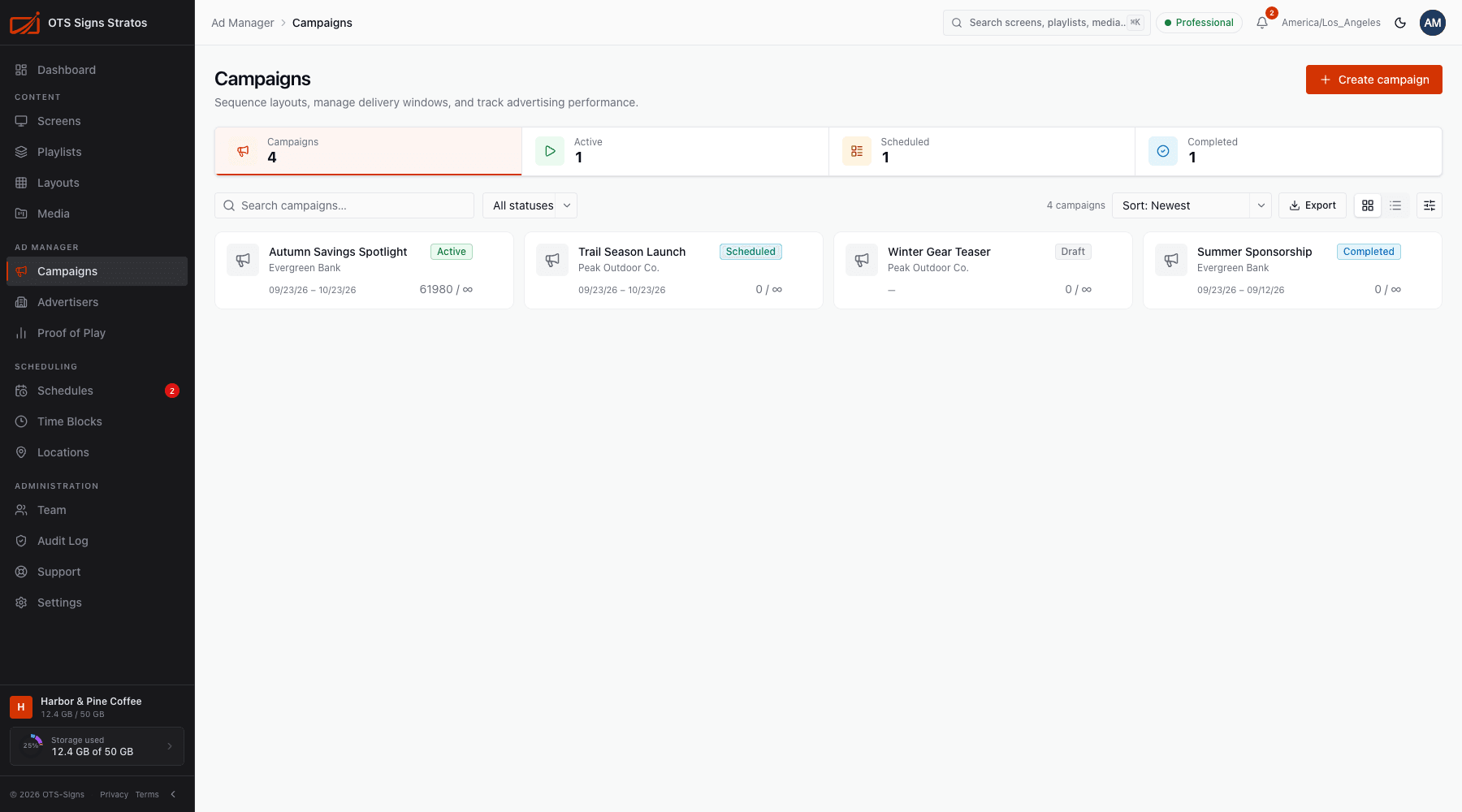
Section titled “The Campaigns page”Search, filter by status (Draft, Scheduled, Active, Paused, Completed, Archived), sort, and Export. Each row shows the campaign, its advertiser, status, billing model and dates. Row actions: Edit, Duplicate, Copy ID and Archive. Select several to archive them together.
Create a campaign
Section titled “Create a campaign”Click Create campaign. First set up the commercial basics:
- Campaign name, for example Autumn city launch.
- Advertiser (required). Add one in Advertisers first.
- Billing model:
- CPM: charge per thousand verified plays. Enter a CPM rate ($).
- Flat rate: one fixed budget. Enter a Campaign budget ($).
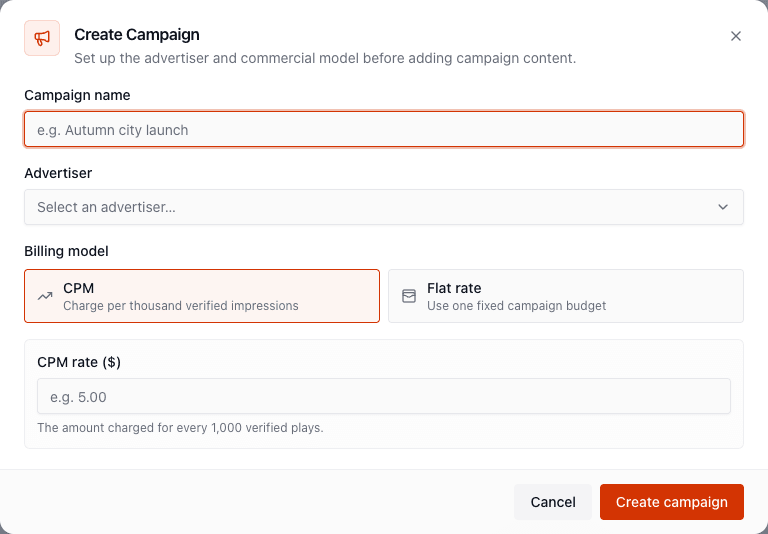
Then finish the details in the campaign’s editor.
The campaign editor
Section titled “The campaign editor”Click a campaign to open it. A header shows its status, billing model and rate. There are four tabs.
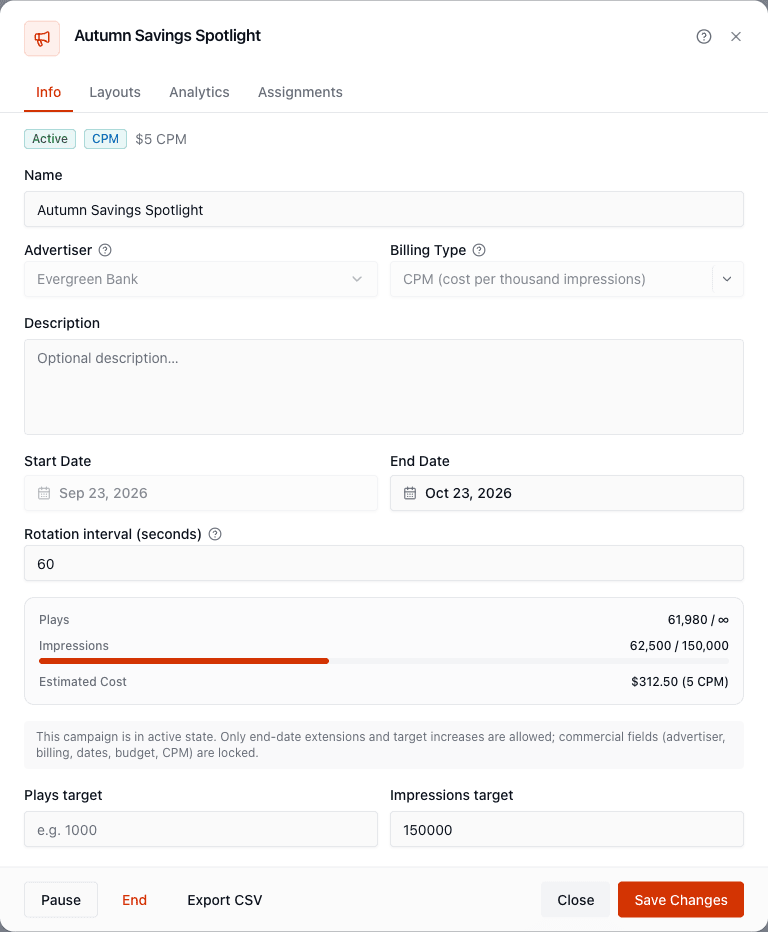
Name, Advertiser, Billing type, Description, Start Date and End Date, and the Rotation interval: how many seconds each layout shows before the next (10 to 3,600, default 60). Depending on billing you also set the CPM rate, Budget, and optional Plays target and Impressions target.
Progress bars show Plays, Impressions and Estimated cost against your targets.
Layouts
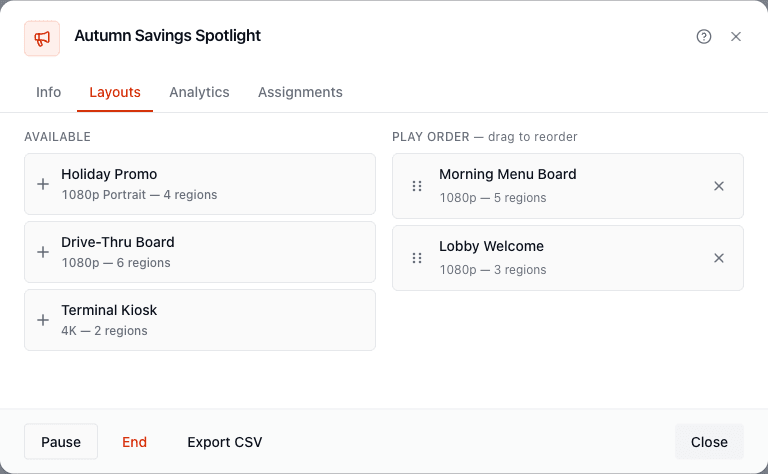
Section titled “Layouts”Choose which layouts the campaign plays and in what order. Drag to reorder. Only published layouts make sense here. Create layouts first if the list is empty.
Analytics
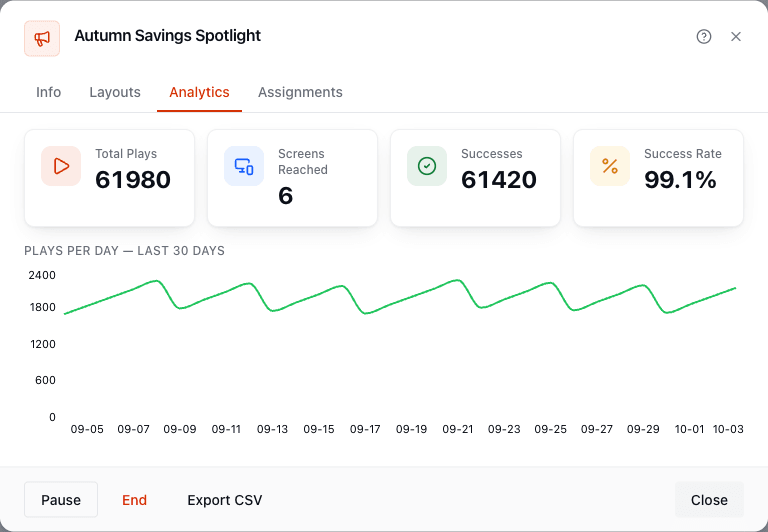
Section titled “Analytics”Total plays, screens reached, successes and success rate, plus a chart of plays and successes per day for the last 30 days.
Assignments
Section titled “Assignments”Where and when the campaign runs. Choose a screen group, the days and a start and end time, and add the assignment. Each one creates a schedule placement for the campaign. Remove assignment takes it away. You can also schedule a campaign from the schedule form by choosing Campaign as the content.
Lifecycle
Section titled “Lifecycle”| Status | Meaning | Actions |
|---|---|---|
| Draft | Being prepared. Not playing. | Schedule |
| Scheduled | Waiting for its start date. | Pause, End |
| Active | Running now. | Pause, End |
| Paused | Temporarily stopped. | Resume, End |
| Completed | Finished. | Archive |
| Archived | Kept for the record. | None |
Scheduling a campaign
Section titled “Scheduling a campaign”Schedule moves a draft forward. It starts immediately (Active) if the start date is today or past, or becomes Scheduled if the start date is in the future. Stratos checks first that the campaign has:
- a start date,
- at least one layout,
- a valid, non-archived advertiser,
- at least one active schedule placement on a screen group (an Assignment), and
- a billing value: a positive CPM rate for CPM, or a positive budget for flat rate.
If anything is missing, you’ll see which check failed.
Ending and archiving
Section titled “Ending and archiving”End completes a campaign early. Campaigns also complete on their end date. After a campaign completes, Archive moves it out of the way. Completed campaigns are archived automatically after the number of days set in Display & Publishing (default 90).
Duplicate a campaign
Section titled “Duplicate a campaign”Duplicate copies a campaign’s setup under a new name, ready to adjust for the next run.