
User Groups
Group people who need the same access, then grant roles to the whole group.
A user group is a named set of people, such as Marketing or Store managers. Give a role to the group once and every member gets it. Add or remove people and their access follows automatically.
Where to find it: Team → Groups. You need user_groups:read to see groups and user_groups:write to manage them. Changing a group’s roles also needs roles:write (Edit roles access).
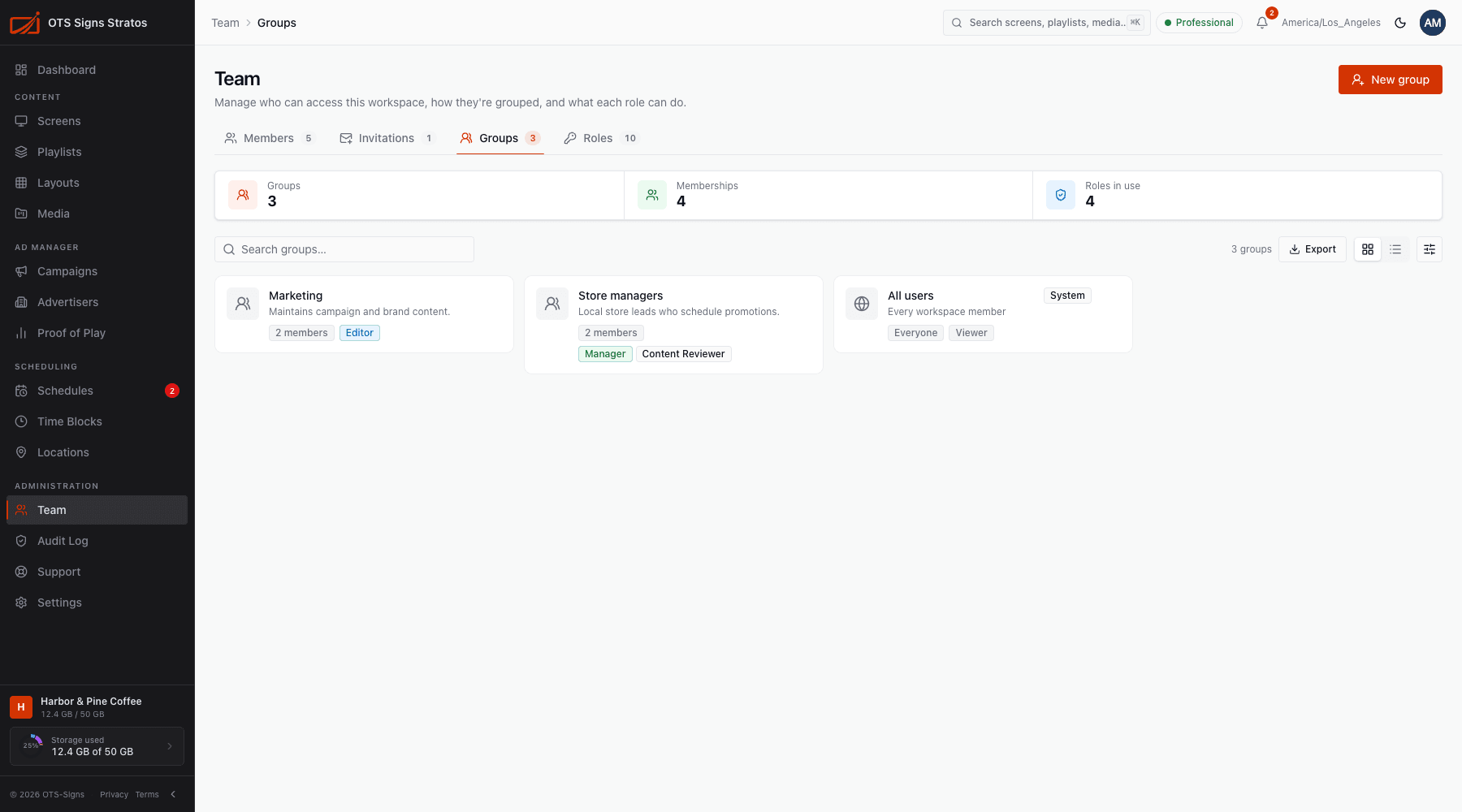
The Groups tab
Section titled “The Groups tab”Each group shows its Members, Roles and when it was Created. Summary tiles show Groups, Memberships and Roles in use.
Create a group
Section titled “Create a group”Click New group and fill in:
- Name, for example Lobby content team.
- Description (optional): who belongs here and why.
- Roles (optional): members inherit these on top of their own role.
- Members (optional): you can add people later.
Open a group
Section titled “Open a group”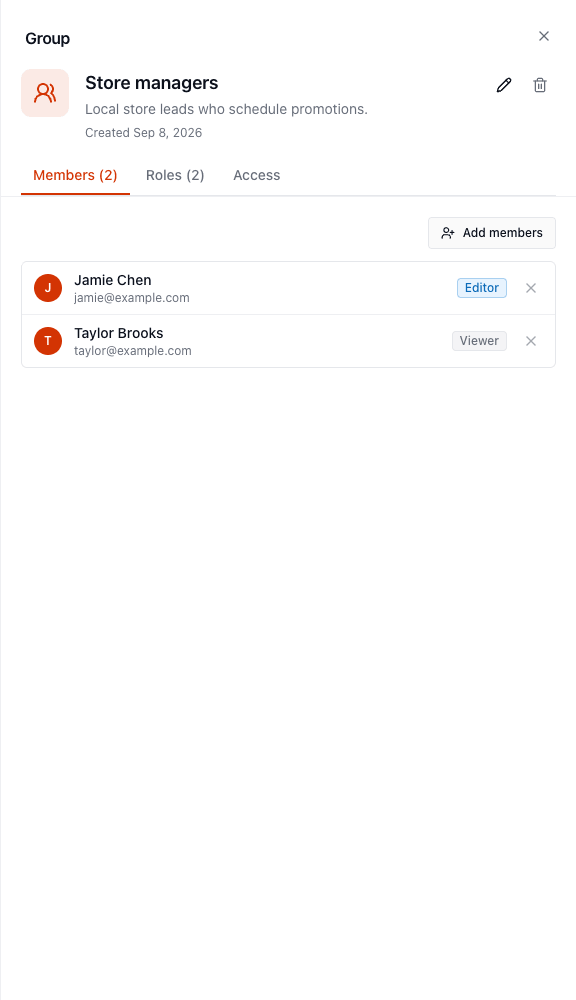
The panel has up to three tabs.
- Members: who’s in the group. Add members picks from your workspace members. Remove people with their row action. If a group has none, you’ll see No members yet.
- Roles: the roles the group grants. Save roles to apply. Members inherit every role selected here, in addition to their own role.
- Access: with
access:read, a summary of what the group’s roles allow.
Use the pencil to edit group details and the bin to delete the group. Deleting a group removes its roles from the people in it, but they keep their own roles.
The “All users” group
Section titled “The “All users” group”Every workspace has a built-in All users (Everyone) group. Everyone who joins is in it automatically, and it can’t be edited. Roles on it apply to every current and future member, so they’re locked to protect against accidental widespread access.
Groups vs roles
Section titled “Groups vs roles”| Use | When |
|---|---|
| A direct role on a person | One person needs something different. |
| A group role | A team needs the same access. |
| A folder grant to a group | A team should reach one folder. See Folder Access. |