
Brand Kit
Set your logo, colours and fonts once so layouts and widgets match your brand.
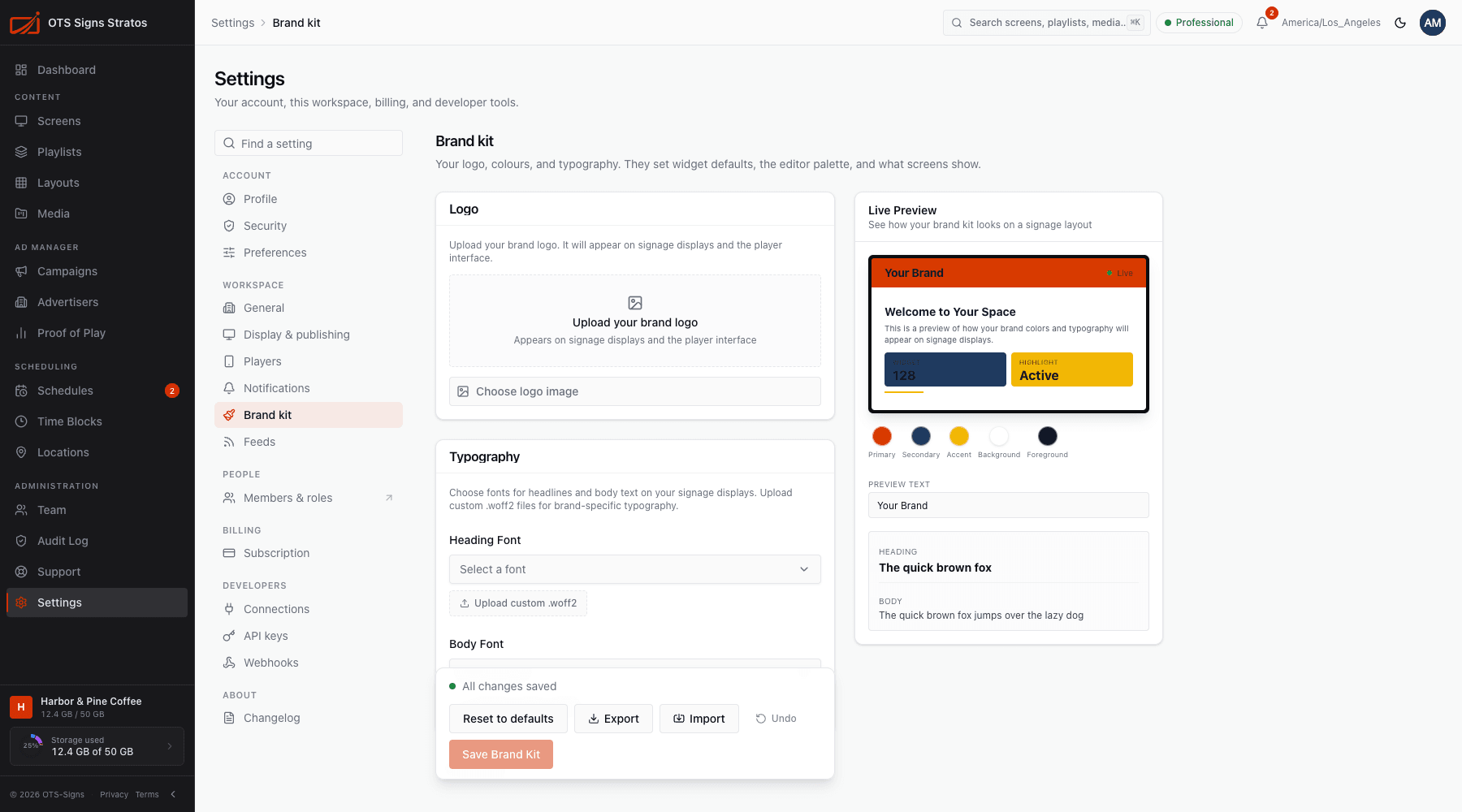
The Brand kit stores your logo, colours and typography. They set the defaults for widgets, the colour palette in the layout designer and the logo shown in Stratos, so everything you build looks consistent.
Where to find it: Settings → Brand kit. You need workspace:read to view it and workspace:write to save changes.
Quick start
Section titled “Quick start”Pick a ready-made theme to begin: Bold and energetic, Clean and technical, Fresh and organic, Professional and trustworthy or Sophisticated dark theme. Then adjust.
Click Choose logo image to pick a file from your Media Library. Your logo appears on signage displays and the player interface, and is available to the Logo widget in layouts.
Colors
Section titled “Colors”| Colour | Use |
|---|---|
| Primary | Your main brand colour: buttons, highlights. |
| Secondary | A supporting colour. |
| Accent | Small pops of emphasis. |
| Background | The base for screens and layouts. |
| Foreground | Text on the background. |
The page checks readability for you with contrast pairs such as Primary on Background and Foreground on Background, so you can tell when text would be hard to read. Click a colour to copy its value.
Typography
Section titled “Typography”Choose a Heading font and Body font from the list, or Upload custom .woff2 to use your own. Only .woff2 files are supported. Replace custom font swaps a font you uploaded.
Live preview
Section titled “Live preview”Live Preview shows how your logo, colours and fonts work together as you change them. Nothing applies until you save.
Save, import, reset
Section titled “Save, import, reset”- Save Brand Kit applies your changes. A message confirms Brand kit saved.
- Export saves your brand kit as
brand-kit.json, and import loads one from a file so you can reuse it in another workspace. An invalid file is rejected (Invalid brand kit file). - Reset to defaults restores default colours and clears custom fonts and logo in the form. Save to apply. Undo steps back through your edits, and the page shows All changes saved when you’re up to date.
Where it shows up
Section titled “Where it shows up”- Widgets start with your colours and fonts.
- The layout designer’s colour pickers offer your brand colours first.
- Your logo appears on signage displays and in the Logo widget.
Elements you’ve already placed keep their current settings. New elements pick up the kit.