
Bulk Actions
Select many items and move, tag, delete or change them together.
Most list pages let you act on many items at once, so tidying hundreds of screens or files doesn’t take hundreds of clicks.
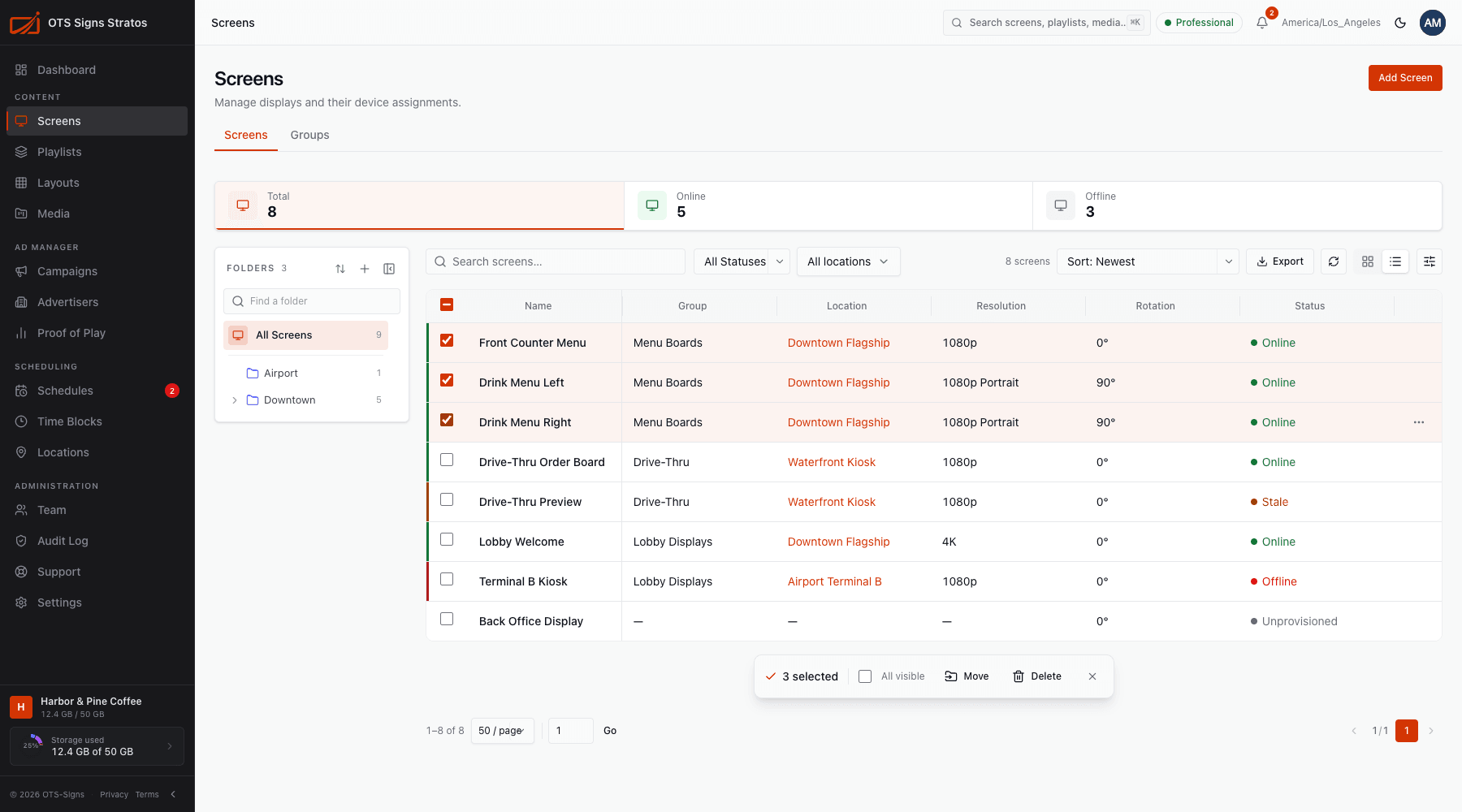
Select items
Section titled “Select items”- Tick the checkbox on a row or card.
- ⇧-click a second checkbox to select the whole range between them.
- Tick the All visible box in the selection bar to select everything on the current page.
- Click Select all matching to select every item that matches your current search and filters, including ones on other pages. The bar says All n matching selected, and you can untick individual items to exclude them.
- Clear selection (or Esc on some pages) deselects everything.
A bar appears when anything is selected, showing the count and the actions available. Selections clear when you leave the page and after an action finishes.
What you can do
Section titled “What you can do”| Page | Bulk actions |
|---|---|
| Screens | Move to a folder, Delete |
| Screen groups | Move, Delete |
| Playlists | Move, Delete |
| Layouts | Move, Delete |
| Media | Move, Apply tags, Delete |
| Tags | Delete (required tags can’t be selected) |
| Members | Change role, Add to group, Remove |
| Invitations | Cancel |
| Overrides | Cancel |
| Campaigns | Archive |
| Advertisers | Delete |
Only actions you have permission for appear.
Confirmations and results
Section titled “Confirmations and results”Destructive actions ask you to confirm, and say how many items are affected. When it finishes, a message reports the outcome, for example Deleted 5 screens or Moved 12 files. If some couldn’t be processed you’ll see how many failed or were skipped and why (for example files in use by playlists, schedules, or overrides were skipped). The rest still go through.
- Filter first, then select. Narrow the list (by folder, status or search), then Select all matching.
- Move before you delete. If unsure, move items into an “Archive” folder.
- Apply tags in bulk to make smart playlists pick content up automatically.