
Folders
Organise screens, playlists, layouts, media and schedules in folders, and use them to control access.
Folders keep large libraries tidy, and they’re also how you give different people access to different content. The same folder tree tool appears on the Screens, Playlists, Layouts, Media and Schedules pages, with a separate tree for each. A folder in the media library is not a folder in Playlists.
You need folders:read to see folders, folders:write to create and organise them, and folders:delete to delete them.
The folder panel
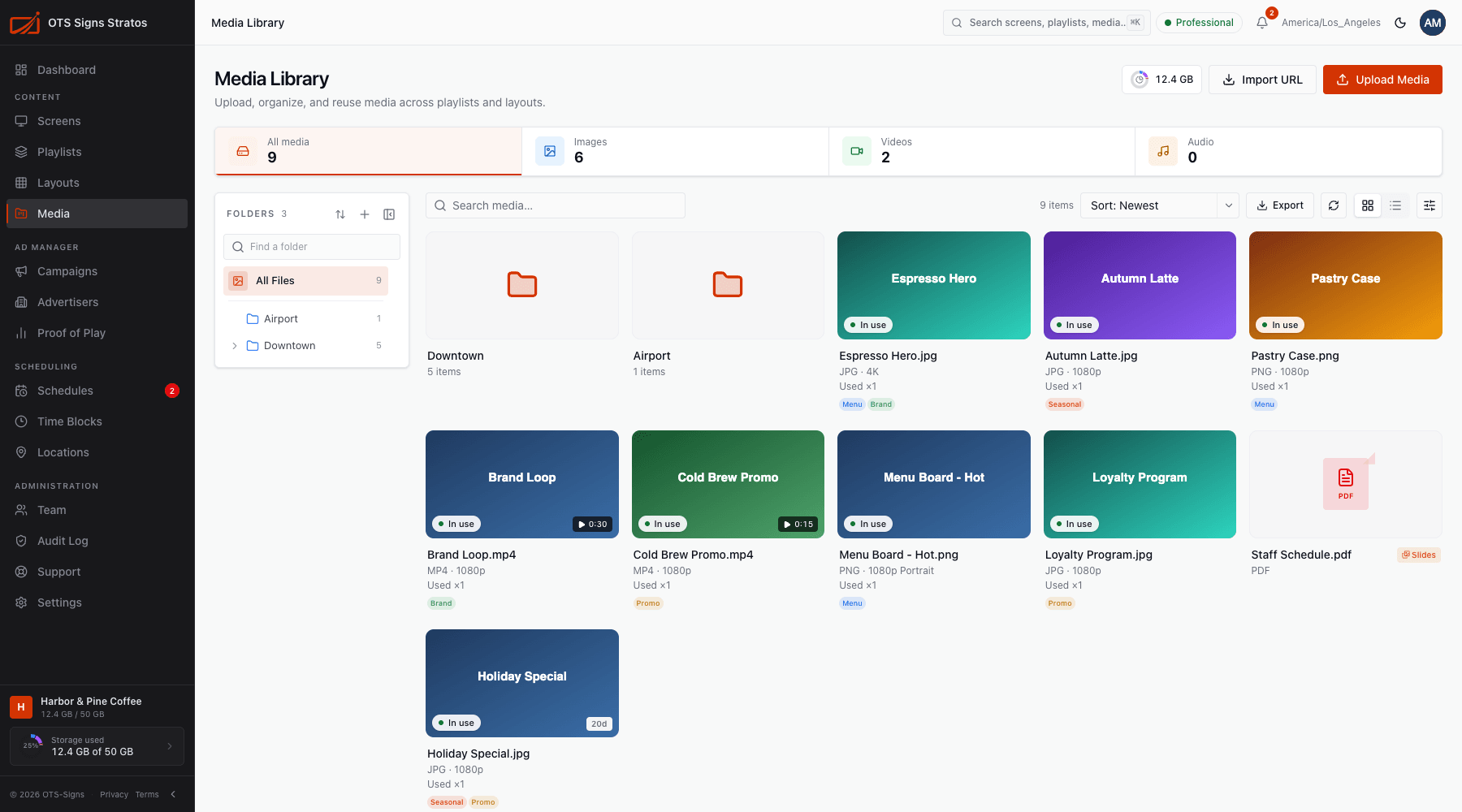
Section titled “The folder panel”The panel on the left of each browse page shows your folders with an item count beside each. Click a folder to filter the page to its contents (All shows everything). Folders can nest, and a > expands or collapses a folder. The panel’s controls:
- Find a folder: type to search the tree.
- Folder sort order: Custom order, Name A–Z or Newest first.
- + New folder: creates a top-level folder.
- The collapse button hides the panel, and the edge can be dragged to resize it.
Work with folders
Section titled “Work with folders”Right-click a folder, or use its ⋯ menu:
| Action | What it does |
|---|---|
| New subfolder | Creates a folder inside it. |
| Rename (F2) | Edits the name in place. |
| Change icon | Picks an icon and colour to make it recognisable. |
| Move to folder | Moves it (and everything in it) under another folder, or to Root level. |
| Folder stats | Shows Direct items, All descendants, Child folders, Storage (for media) and when it was Created. |
| Manage Access / Share | Media folders only. See Folder Access and Sharing Folders. |
| Delete | Removes the folder. |
You can also drag and drop a folder to reorder it or move it into another one. Drop it on All to move it to the top level.
Put things in folders
Section titled “Put things in folders”- Media: choose a Destination when uploading, drag files onto a folder, use Move to Folder, or change it on the file’s page.
- Screens, playlists, layouts, schedules: use Move to Folder on a row (or Move in bulk), or the Folder field in a screen’s settings.
Moving something changes where it lives immediately. Schedules, playlists and screens keep working.
Folders and access
Section titled “Folders and access”Folders are more than filing. By default, people with a broad role (such as Editor or Admin) can reach every folder. For someone with a Restricted Member role, or for anyone you want to limit, you give access folder by folder. Grants cascade to subfolders, so a well-planned tree makes access simple. See Folder Access.
Planning a structure
Section titled “Planning a structure”- Mirror how you work: by region (Downtown, Airport), department or client.
- Keep it shallow, two or three levels, so things are easy to find.
- Put things that should share access in the same folder.