
Uploading Media
Upload images, videos and documents, choose where they go, and follow progress in the upload tray.
You can upload from the Media Library, from the media picker when you add content to a playlist or layout, or by sharing a public upload link with someone outside your team.
Upload from your computer
Section titled “Upload from your computer”- Open the Media Library and click Upload Media, or drag files onto the page.
- Choose your files. Stratos opens the Upload media dialog so you can review them before anything is sent.
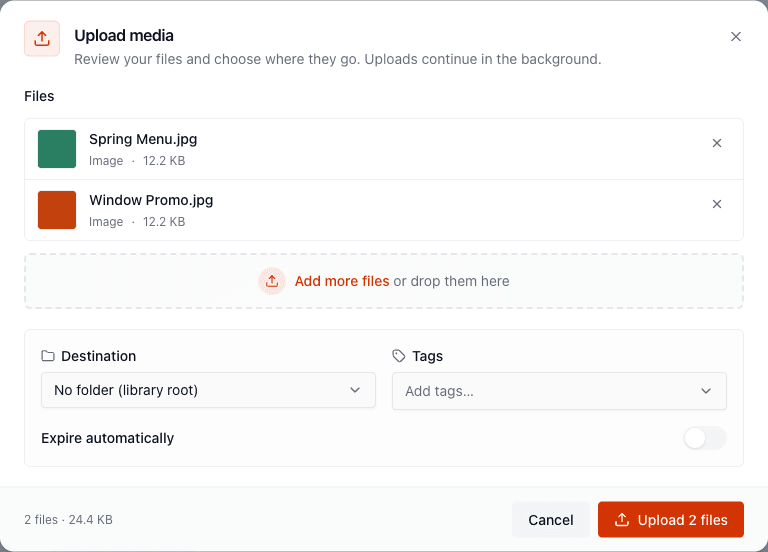
In the dialog:
- Files lists everything you’ve chosen, with type and size. Files that can’t be uploaded are marked with the reason: Unsupported file type, File is empty, or Larger than the limit. Remove any with ✕, or Add more files.
- Destination picks the folder (No folder (library root) by default).
- Tags applies tags to every file in the batch.
- Expire automatically sets a date after which the files stop playing. See Expiry.
- PDFs and Office documents show import options. See Documents & Presentations.
Click Upload n files. You can keep working. Uploads continue in the background.
The upload tray
Section titled “The upload tray”A tray at the corner of the screen tracks every upload with progress, so uploads survive moving between pages. Each file shows its state until it is Ready. After upload, files are processed (thumbnails, video conversion, document rendering), which can take a moment for large files. Click Open on a finished file to see it.
Up to three files transfer at once. Large files (8 MB and up) upload in chunks, so a hiccup doesn’t restart them from zero.
Limits
Section titled “Limits”| Limit | |
|---|---|
| Images, videos, PDFs | 500 MB per file |
| Office documents | 2 GB per file |
| Storage | Your plan’s storage allowance. See Storage. |
If you’d go over your storage limit, the upload is refused with Storage quota exceeded.
Live Photos
Section titled “Live Photos”If you choose an iPhone Live Photo (a still plus its short video), Stratos detects the pair and offers to upload them as one Live Photo that plays as a still and then a motion clip. You can also upload them as two separate files.
Import from a URL
Section titled “Import from a URL”In the library, Import URL fetches a publicly accessible file. Enter the File URL, click Check URL and then Import file. It lands in the current folder and is processed like an upload.
Upload from the media picker
Section titled “Upload from the media picker”When you click Add content → Media in a playlist or add media to a layout, the picker has an Upload tab that uses the same queue.
- Name files clearly. Names appear everywhere. Menu-Board-Hot-Drinks.png beats IMG_4482.png.
- Match your screens. Upload at the resolution your screens use. Very large images use more storage and take longer to load on the player.
- Use video for motion, and keep an eye on file size on slow networks.
- Tag as you go. Tagging at upload time makes smart playlists work without extra effort.