
Media Tags
Label media, playlists and layouts with coloured tags to find them fast and drive smart playlists.
A tag is a coloured label such as Seasonal, Menu or Promo. Tags can be applied to media, playlists and layouts, and they power smart playlists.
Where to find it: the Tags page. Open it from the command palette (⌘ K, then type tags) or go to /tags. You need tags:read, and tags:write to create and edit.
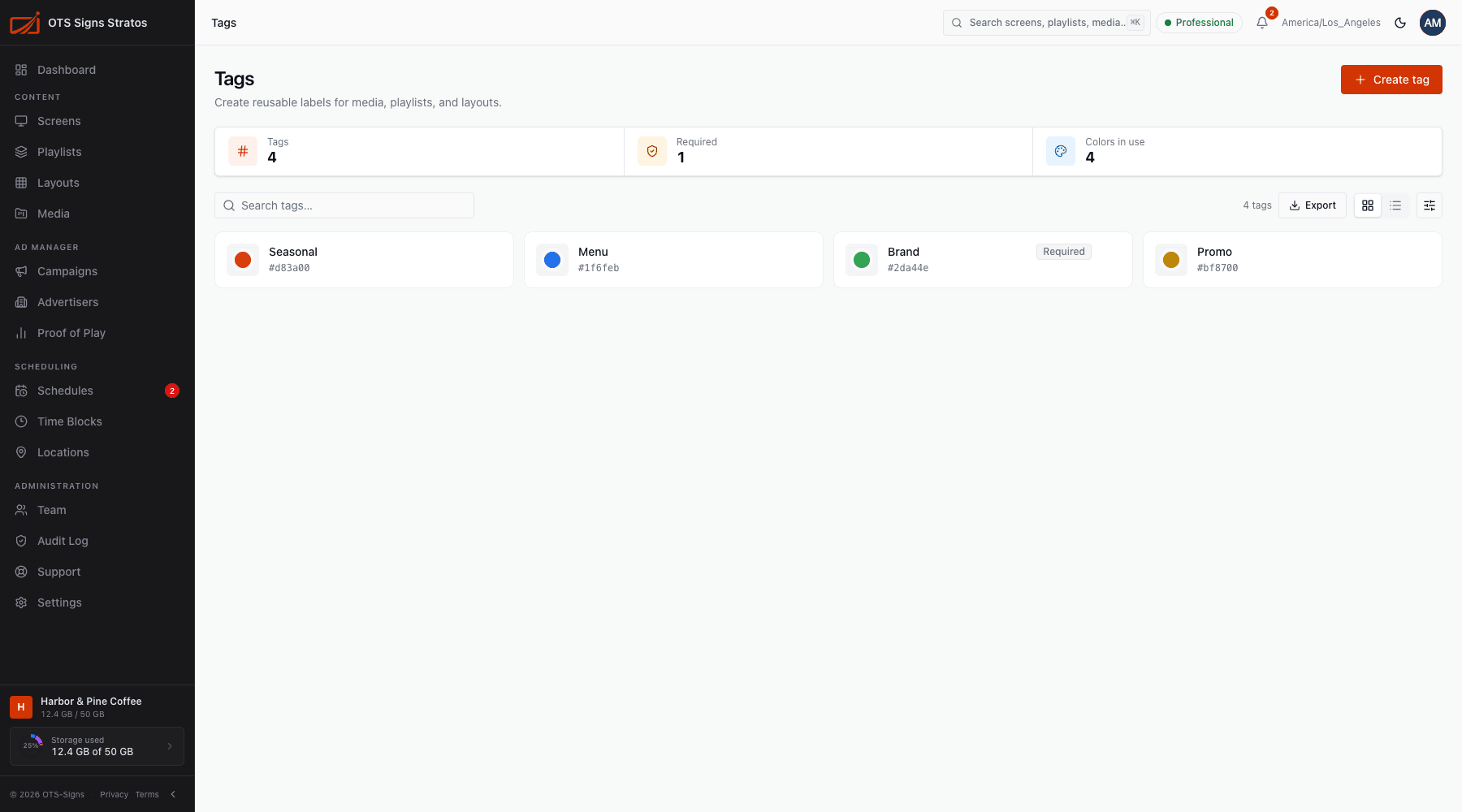
The Tags page
Section titled “The Tags page”Summary tiles show Total tags, how many are Required and how many Colors in use. Each tag shows its colour, name and policy (Required or Optional). Search, sort and Export work as on other lists.
Create a tag
Section titled “Create a tag”Click Create Tag, give it a Name (for example Seasonal) and pick a Color. A Preview shows how it will look across Stratos. Tags are reusable, so keep names short and consistent.
Edit a tag to rename it or change its colour. This updates everywhere the tag is used.
Tag your content
Section titled “Tag your content”- Media: use Edit Tags on a file, tag in the file’s page, tag a batch with Apply tags in the library, or choose tags in the upload dialog.
- Playlists: set playlist tags in the playlist’s Settings tab.
Applying tags in bulk keeps any tags a file already has.
Use tags
Section titled “Use tags”- Find content. Filter the library by tag.
- Drive smart playlists. A smart playlist picks all media with the tags you choose, so adding a tagged file to the library adds it to the rotation automatically. See Smart Playlists.
Required tags
Section titled “Required tags”Tags marked Required are protected: they can’t be deleted and can’t be selected for bulk delete.
Delete a tag
Section titled “Delete a tag”Delete removes the tag from everything that uses it. The content itself isn’t affected.