
Adding a Screen
Create a screen in Stratos and pair a player to it with a pairing code.
A screen is a display in your workspace: a lobby TV, a menu board, a kiosk. A screen holds the settings (name, size, rotation, location) and the content assignments. A player is the device that actually shows that content. You create the screen in Stratos, then pair a player to it with a short code.
Where to find it: Screens in the sidebar, then Add Screen. You need the screens:write permission to see the button.
Before you start
Section titled “Before you start”- Install the Stratos player on the display’s computer and power it on. See Player Software and Supported Hardware.
- Make sure the device can reach Stratos over the network. See Network Requirements.
- Check that your plan has a free screen license. See Screen licenses below.
Step 1: Details
Section titled “Step 1: Details”Click Add Screen on the Screens page. The dialog has two steps, Details then Pair player.
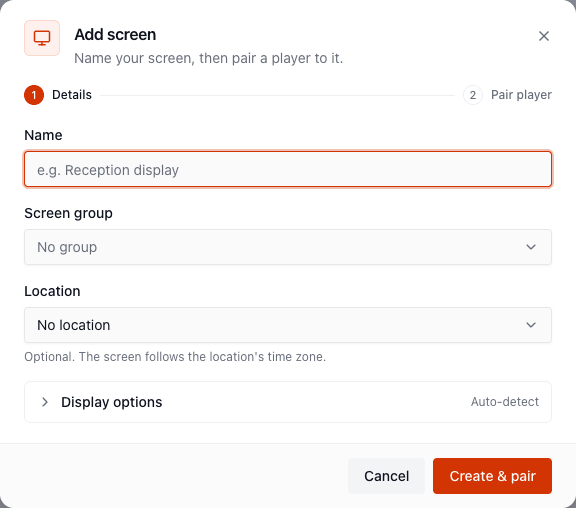
- Enter a Name. This is the only required field.
- Optionally expand the display options:
- Resolution: choose Auto-detect (the default), 1080p, 4K or 720p, or enter a custom width and height in pixels. Auto-detect lets the player report its own size on first connection.
- Rotation: 0°, 90°, 180° or 270°. Use 90° or 270° for portrait-mounted screens.
- Screen group and Location, if you already have them set up.
- Click Create & pair. (Use Skip for now on the next step if you’d rather pair later.)
You can change every one of these later in Screen Settings.
Step 2: Pair the player
Section titled “Step 2: Pair the player”When the player has no configuration, it shows a pairing code on its screen. The code is valid for a short time. The player counts down and requests a fresh code automatically if it expires.
- Read the code from the display.
- Type it into the Pairing code field. Letters are not case-sensitive and spaces or symbols are stripped as you type.
- Click Pair device.
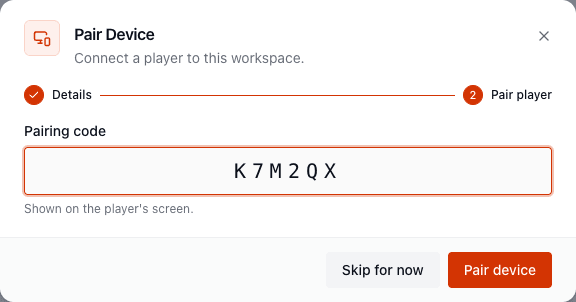
The player receives its credentials automatically, with no token to copy, and starts showing content as soon as it next checks in. The dialog confirms with Device Paired.
Pair or replace a player on an existing screen
Section titled “Pair or replace a player on an existing screen”Open the screen and use Provision device (or Re-provision device when a player is already paired) from the header, the More actions menu or the Device tab. Re-provisioning is how you swap in replacement hardware: the new player takes over the screen’s settings and schedules.
Screen licenses
Section titled “Screen licenses”Each paired screen uses one screen license from your plan. When every license is in use, the pairing dialog shows No Screen Licenses Available instead of the code field, with a button to buy another. Depending on your subscription this reads Purchase Screen License or Open Billing Portal. Only people with billing access can complete the purchase. See Plans & Subscription.
Deleting a screen unpairs its player and frees its license.
First-run welcome
Section titled “First-run welcome”The first time a workspace admin signs in, a one-time Welcome page offers the same flow: confirm the workspace time zone, then Add screen and enter pairing code. Nothing on that page is required. Choose Skip for now to go straight to the dashboard. See Your First 5 Minutes.
If pairing fails
Section titled “If pairing fails”| What you see | What to do |
|---|---|
| The code is rejected | Check for typos (0/O, 1/I), and that the code is still showing. Codes expire; use the one currently on the display. |
| No code appears on the display | The player can’t reach Stratos. Check the network and the Network Requirements. |
| No Screen Licenses Available | Add a license, or delete a screen you no longer use. |
More help is in Pairing a Device and Player Troubleshooting.